Adding and Deleting Games
Learn how to add missing games, avoid duplicates, submit metadata and images, track moderation progress, and request deletion when needed.
Written By launchbox
Last updated 2 months ago
The Games Database is shared by the LaunchBox community, so adding or deleting a game affects more than your own library. This guide walks through how to add a missing game, how to avoid creating duplicates, what happens after submission, and when it makes sense to request deletion.
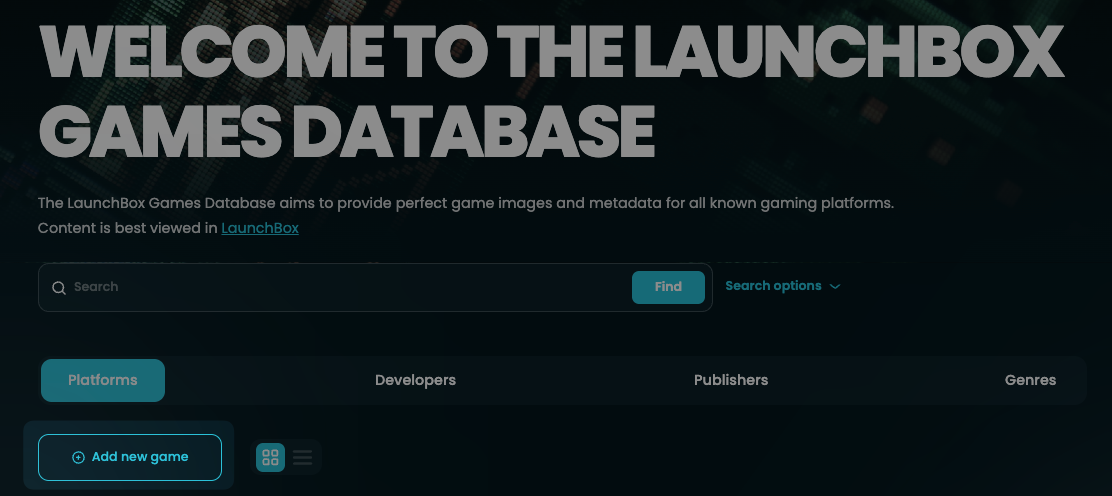
Before you add a new game
Before creating a new entry, make sure the game does not already exist. Duplicate records make imports harder, split metadata across multiple entries, and create extra moderation work.
Search for the game title first. Try common variations, regional names, subtitles, and the platform you expect the game to be listed under. If the title has punctuation or a subtitle, search both the short title and the full title.
For example, a game might already exist under a regional title or with a subtitle you did not include in your first search. If you find the game, open the existing entry and submit an edit instead of adding a new one.
Title quality matters
When adding a game, use the title that best matches the official box art or official listing. Good titles help LaunchBox match imports correctly and keep the database consistent.
Good title examples:
DOOM 3: Resurrection of Evil
The Addams Family: Pugsley's Scavenger Hunt
King's Quest VI: Heir Today, Gone Tomorrow
Star Wars: X-Wing Alliance
Avoid titles that do not match the official presentation, use the wrong punctuation, rearrange words for sorting, or leave out part of the title.
Bad title examples:
DOOM III when the box art uses DOOM 3.
Addams Family, The: Pugsley's Scavenger Hunt because the words are rearranged.
Star Wars - X-Wing Alliance when the official title uses a colon.
Star Wars: Jedi Knight when part of the full title is missing.
For more detailed standards, see Moderation Guidelines Reference.
Adding a new game
To add a game, start by entering the game title and selecting the platform. The site checks for similar games on that platform before opening the full add form.
If similar games are found, review them carefully. Open any likely matches in a new tab and confirm whether your game already exists. If it does, edit the existing game instead. If the game is not listed, continue with the option that confirms the game you are trying to add is not listed.
Filling in metadata
After the duplicate check, fill in as much accurate metadata as you can. The add form may include release date or release year, game type, max players, publishers, genres, developers, overview text, alternate names and regions, Wikipedia link, video link, cooperative status, and ESRB rating.
You do not need to fill every field if you do not know the answer. Accurate partial data is better than guessed complete data. Use trustworthy sources and follow the standards in Moderation Guidelines Reference for what counts as good data.
Alternate names are especially useful for imports. Add regional names or common title variations that help LaunchBox match user libraries more accurately.
Adding images while creating a game
You can add images while creating a new game. Choose the correct image type, upload the file, and select a region if the image is region-specific.
Use high-quality images and place them in the correct category. For example, box art should go in the correct box category, gameplay screenshots should go in screenshot categories, clear logos should be transparent logos, and fanart should stay in fanart categories.
If you are unsure which image type to use, check Image Standards and Requirements before submitting.
Submitting a new game
When you submit the game, it is sent to moderation. The game may not appear publicly right away. Moderators review the new entry and decide whether the game and its metadata should be accepted.
After submission, the site links you to the status page for your changes. Use that page to check whether your submission is still pending, approved, or rejected.
How approved data reaches LaunchBox
Once a game or metadata change is approved, it becomes part of the Games Database. LaunchBox uses exported metadata database files when scraping and importing, so approved changes may require LaunchBox to download an updated metadata database before they appear locally.
In LaunchBox, use the metadata update/download options to refresh the local metadata database before expecting newly approved games or edits to appear during scraping. Look for the option to update or download the LaunchBox Games Database metadata from inside LaunchBox.
Why would you delete a game?
Deletion should be used carefully. A game should be removed only when the record should not remain in the shared database.
Common reasons include:
Duplicate: The same game already exists as a better or correct record.
Not a Game: The entry is not actually a game.
Other: There is another clear reason the entry should not remain.
Do not request deletion just because metadata is incomplete, artwork is missing, or a field is wrong. In those cases, edit the game instead.
Finding the game to delete
Search for the game and open the game details page. Before requesting deletion, confirm that you are on the correct platform and that the record really should be removed.
If the reason is duplicate, also find the game record that should remain. Compare names, platforms, release details, images, and metadata so moderators can verify the request.
Requesting deletion
On the game details page, use the delete action. Choose the reason for deletion and write a clear explanation.
If you choose Duplicate, search for and select the existing game that should remain. You can open the selected game in a new tab to double-check it before submitting the deletion request.
If the delete action is disabled, the game may already have an open deletion request or an admin may have locked deletion for that record.
How deletion moderation works
Deletion requests go through moderation because removing a game is a high-impact change. Moderators review the request, the reason, and any duplicate target before deciding whether deletion is appropriate.
If a game already has a deletion request in moderation, the site prevents duplicate deletion requests. Wait for the existing request to be reviewed.
Some deletion flows may require higher-level review. This protects the database from accidental removals and gives moderators a chance to confirm that the record should actually be deleted.
Good habits when adding or deleting games
Search first, especially for regional titles and subtitle variations.
Prefer correcting an existing record over creating a duplicate.
Use official titles and platforms whenever possible.
Do not guess metadata.
Add useful images only when they are correctly categorized and good quality.
Use deletion only when the record should not exist.
Write clear reasons so moderators understand your submission.
Was this helpful?
Still need help? Ask the team