Using Dual Screens in LaunchBox for Android
Written By launchbox
Last updated 4 days ago
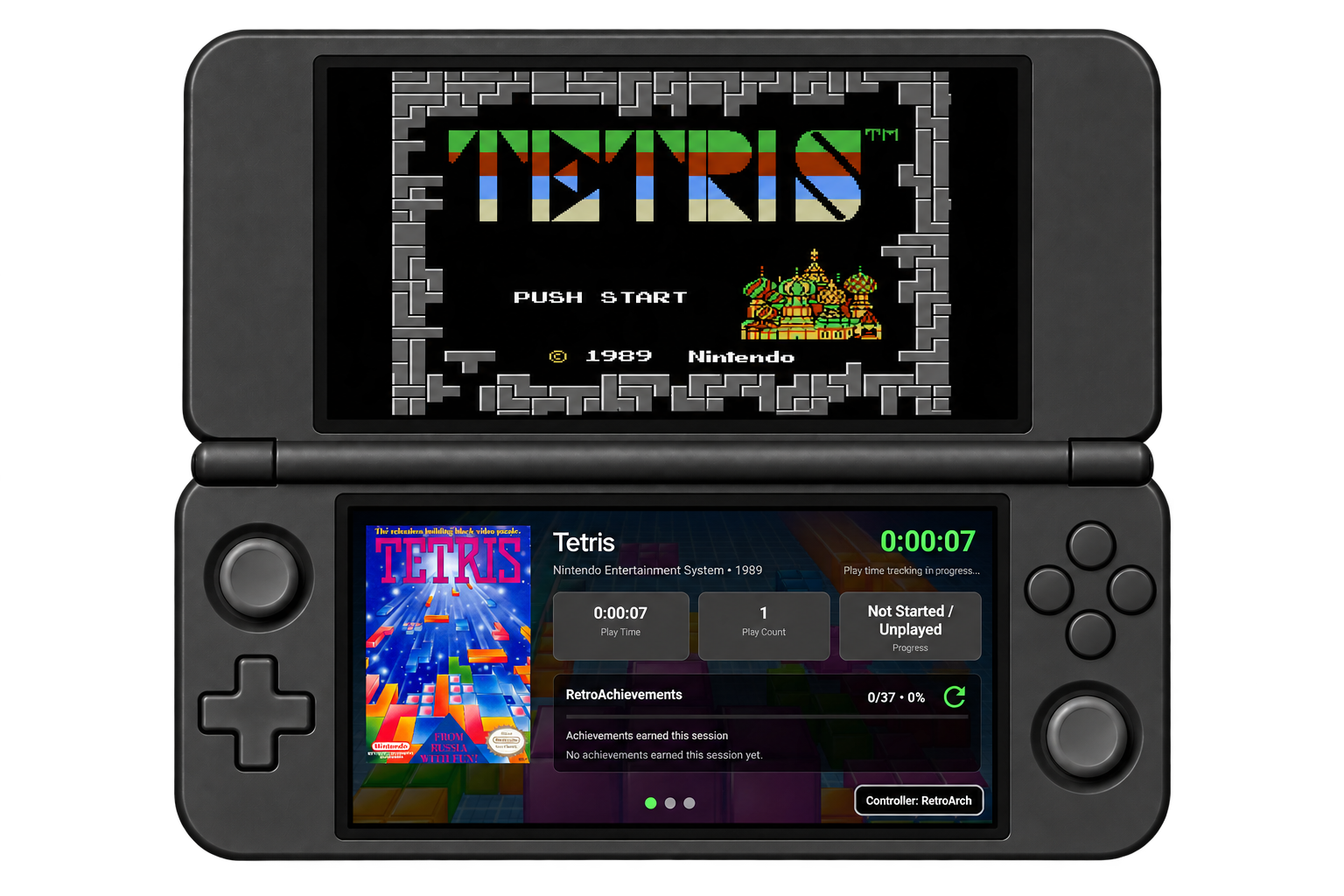
On supported dual screen devices, LaunchBox for Android lets you browse your library on one screen while viewing game information on the other. When you launch a game, the remaining screen can become a companion display for session statistics, achievements, and artwork.
You can choose where your library appears, where supported emulators open, and which information stays visible while you play.
📌 Version requirement: This guide covers the expanded dual screen experience in LaunchBox for Android 1.23 or later. The available options depend on your device and how Android presents its displays to LaunchBox.
🎮 Why Use Two Screens?
Dual screen support gives you more room to explore your games without crowding the library view:
Browse and read together: Move through your games while the other screen shows information about your selection.
Keep useful information nearby: View achievements and session information while a game runs on the other display.
Choose your layout: Swap the Library and Game Details screens to suit your device.
Customize the details pages: Choose the pages you want, arrange their order, and hide pages during play.
📱 Enabling the Second Screen
Open LaunchBox’s main menu.
Select Options.
Find the Second Screen section.
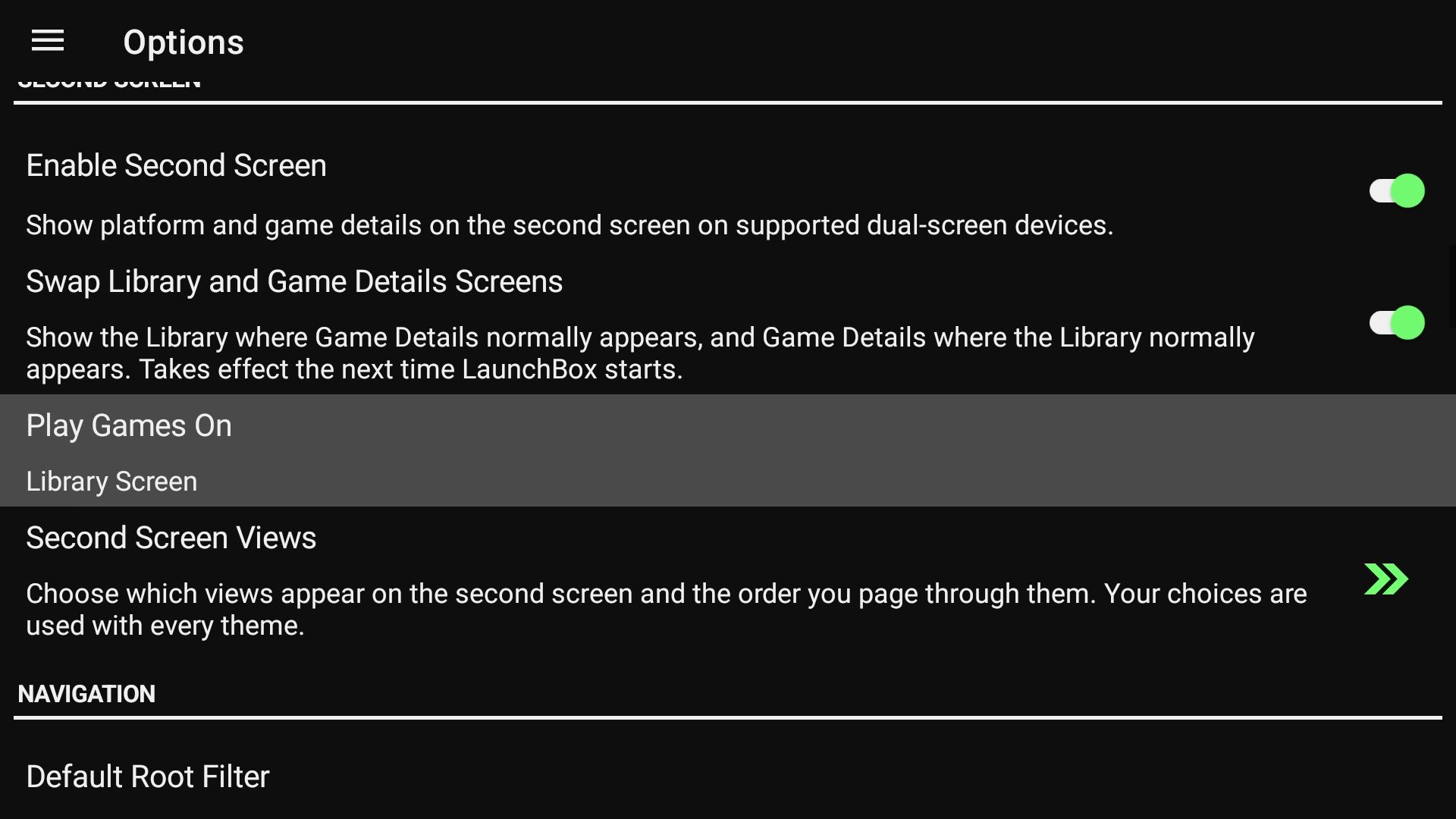
Turn on Enable Second Screen.
Return to your library and select a game.
LaunchBox uses the Library Screen for browsing and the Game Details Screen for information about the selected platform or game. Settings and achievement pages can also open on the Game Details Screen.
On devices that present both screens as one spanned app area, make sure LaunchBox is displayed across both screens using your device’s own controls.
💡 The Second Screen section is device dependent. It appears when LaunchBox detects dual screen capability. A foldable device with one continuous display is not automatically equivalent to a device with two supported screens.
Popular supported dual screen devices include the AYN Thor and Retroid Pocket Duo. More dual screen devices are coming out all the time, so the available screen layouts and device controls may vary.
🔄 Choosing Which Screen Does What
Open main menu > Options and find the Second Screen section.
Swap the library and details screens
Turn Swap Library and Game Details Screens on or off to exchange their positions.
For example, you may prefer browsing on the lower screen while artwork and game information appear on the upper screen.
Choose where games open
Where available, select Play Games On and choose:
Library Screen
Game Details Screen
This sets the screen LaunchBox requests when opening an emulator. It is separate from choosing where the library and details appear.
⚠️ Emulator behavior can vary. Android and the emulator determine whether a game can open on the requested display. Some emulators may use their own display preferences or handle additional screens themselves.
🧾 Browsing Game Details
Select a game on the Library Screen to update the Game Details Screen. LaunchBox provides these built in pages:
Overview: Read information about the selected game.
Achievements: Browse its RetroAchievements set and your progress, when available.
Artwork: View game artwork.
Video: View available game video media.
Statistics: View session information while a game is running.
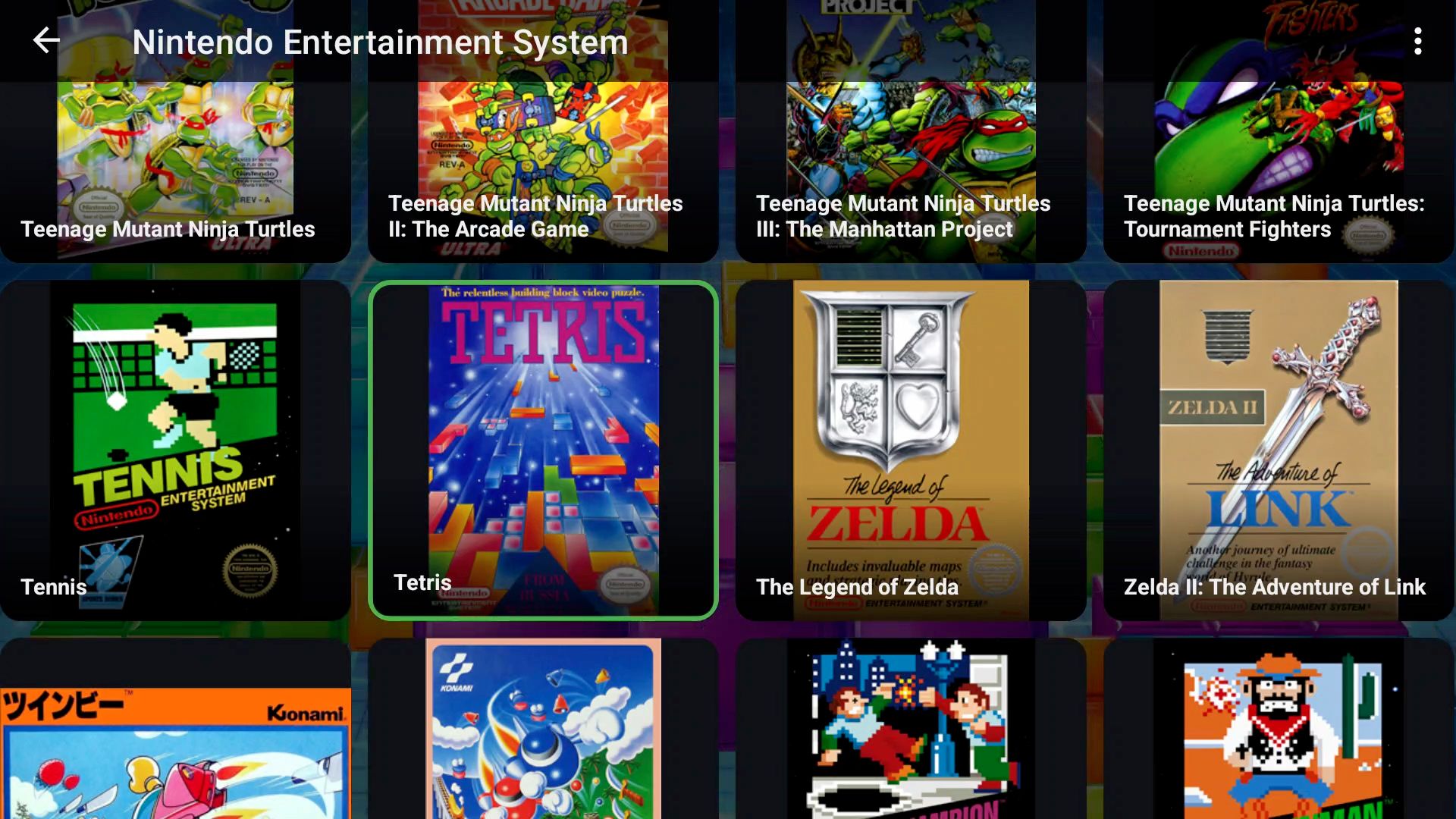
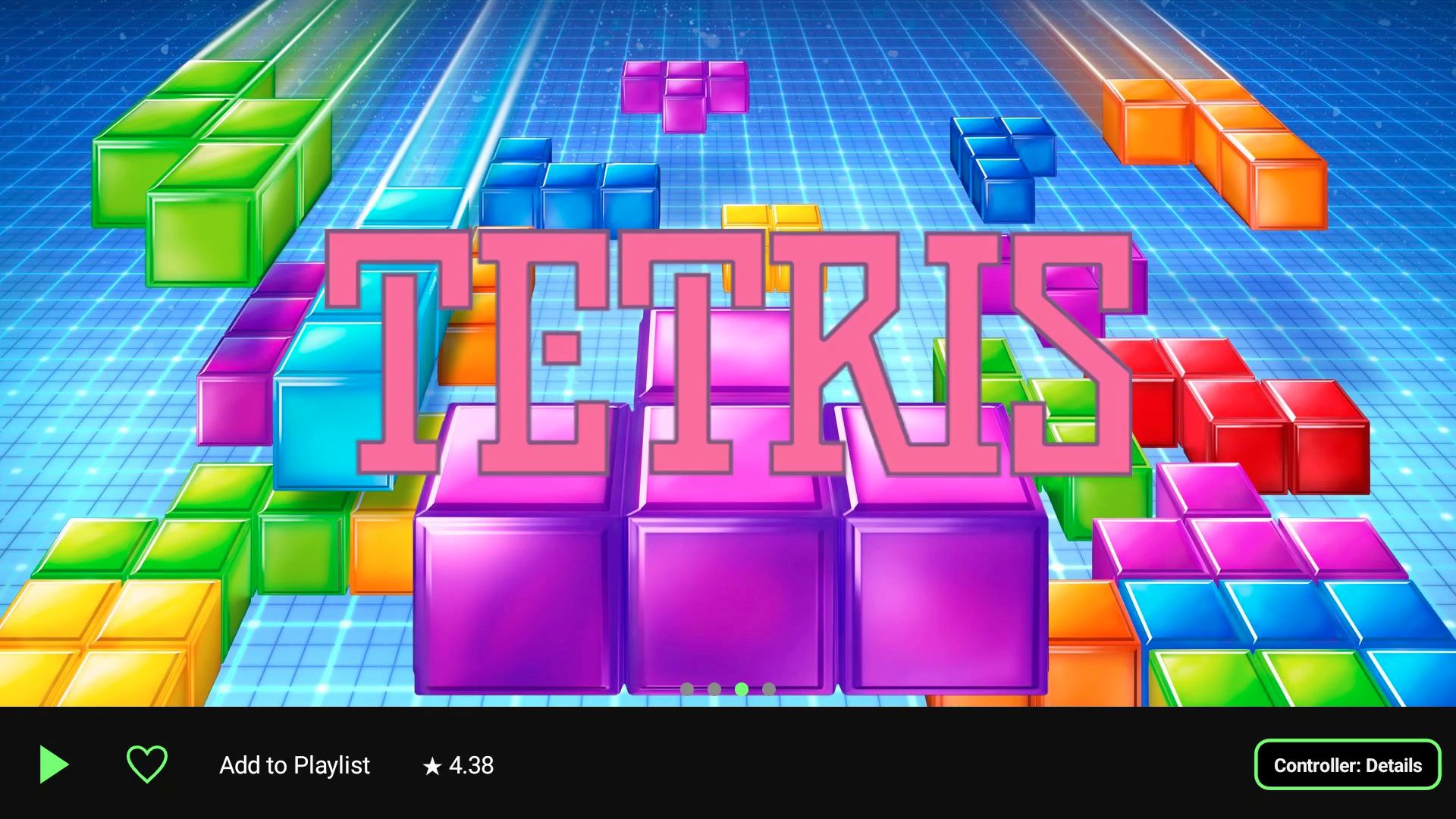
Page availability depends on your selected views, game media, and account setup. Themes can also provide additional second screen pages.
Swipe between the details pages to browse them. The page indicator shows where you are in the sequence.
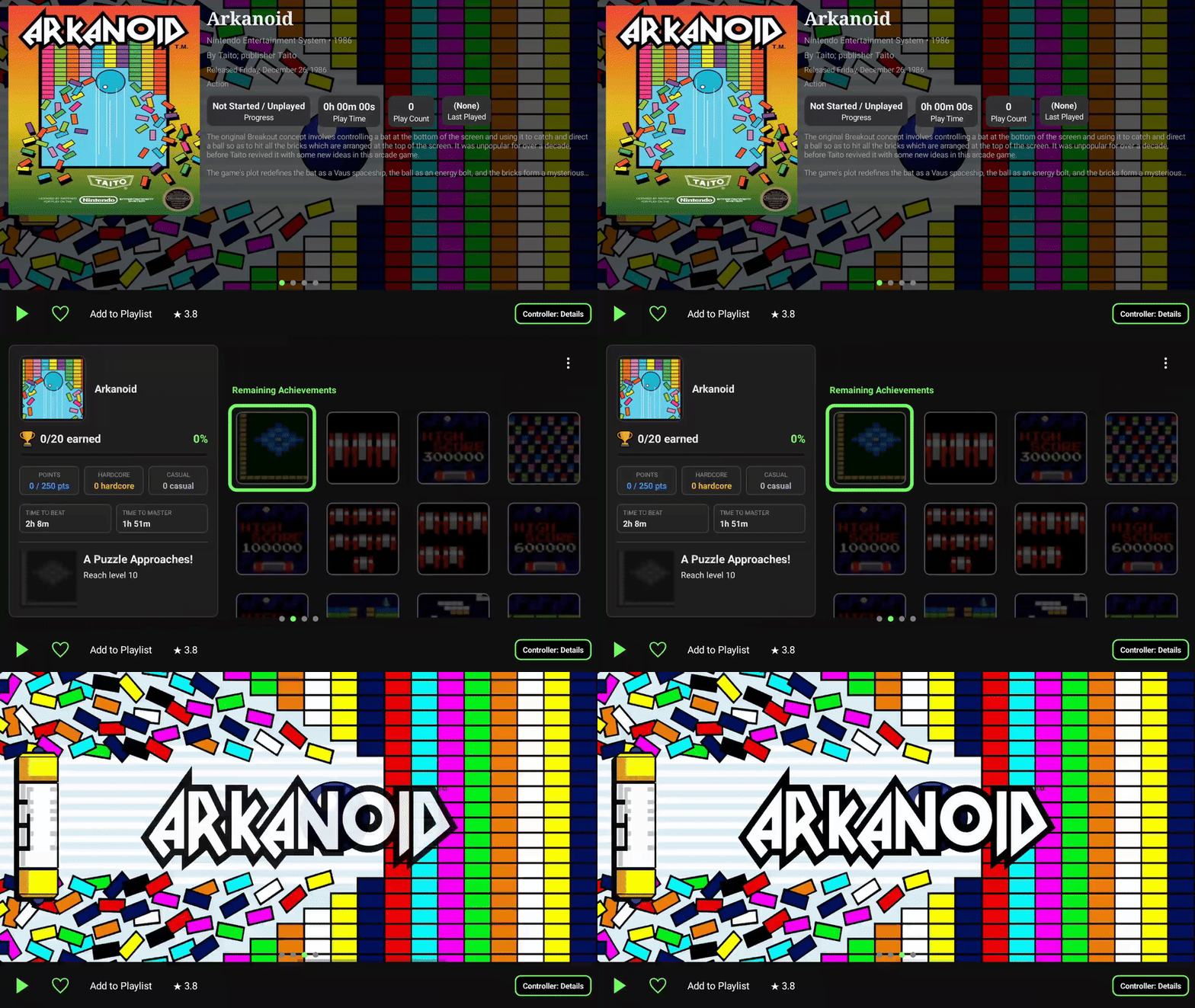
The details screen also offers quick actions where applicable, including Play or Download, marking a game as a favorite, adding it to a playlist, and changing its star rating.
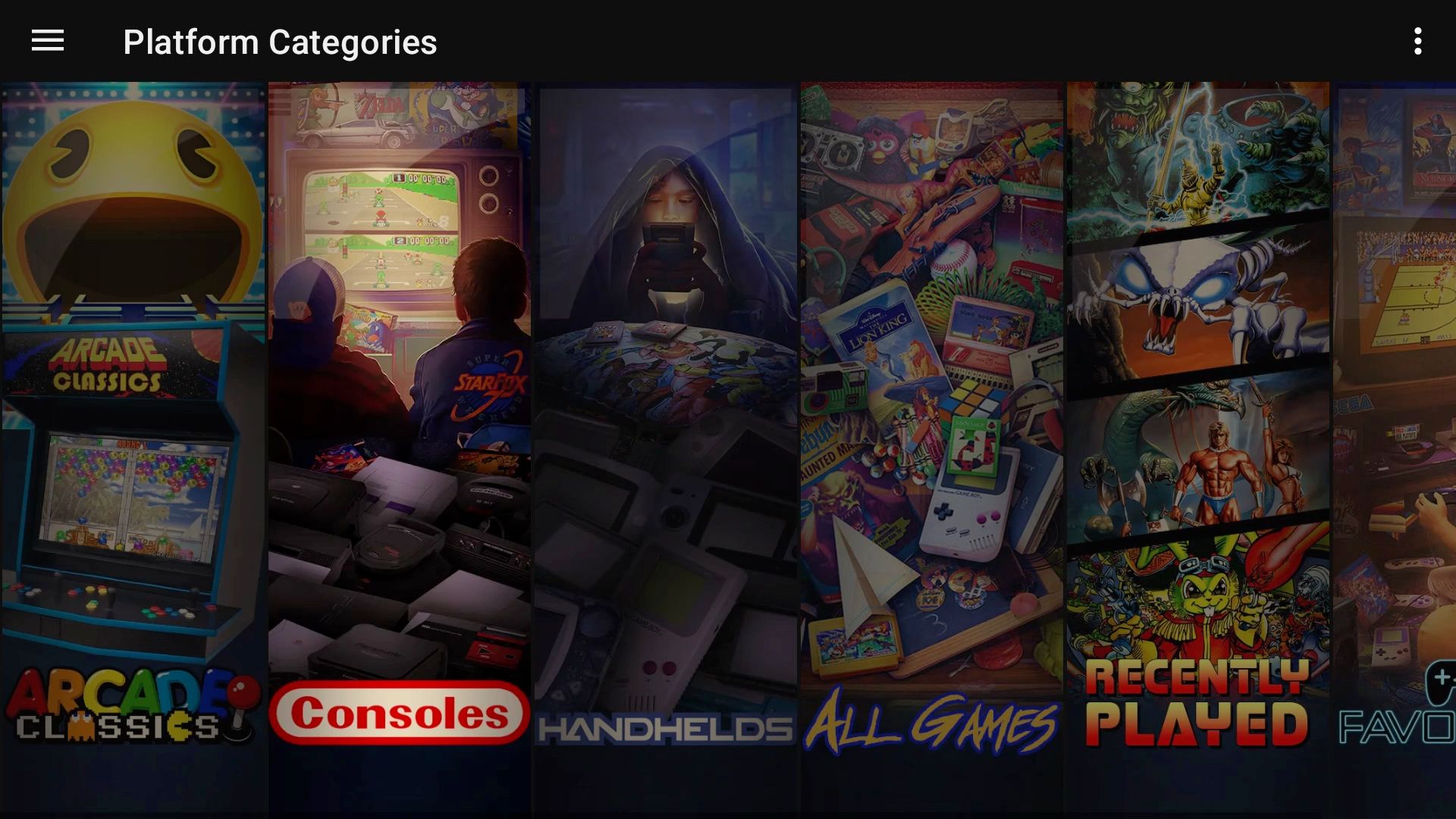
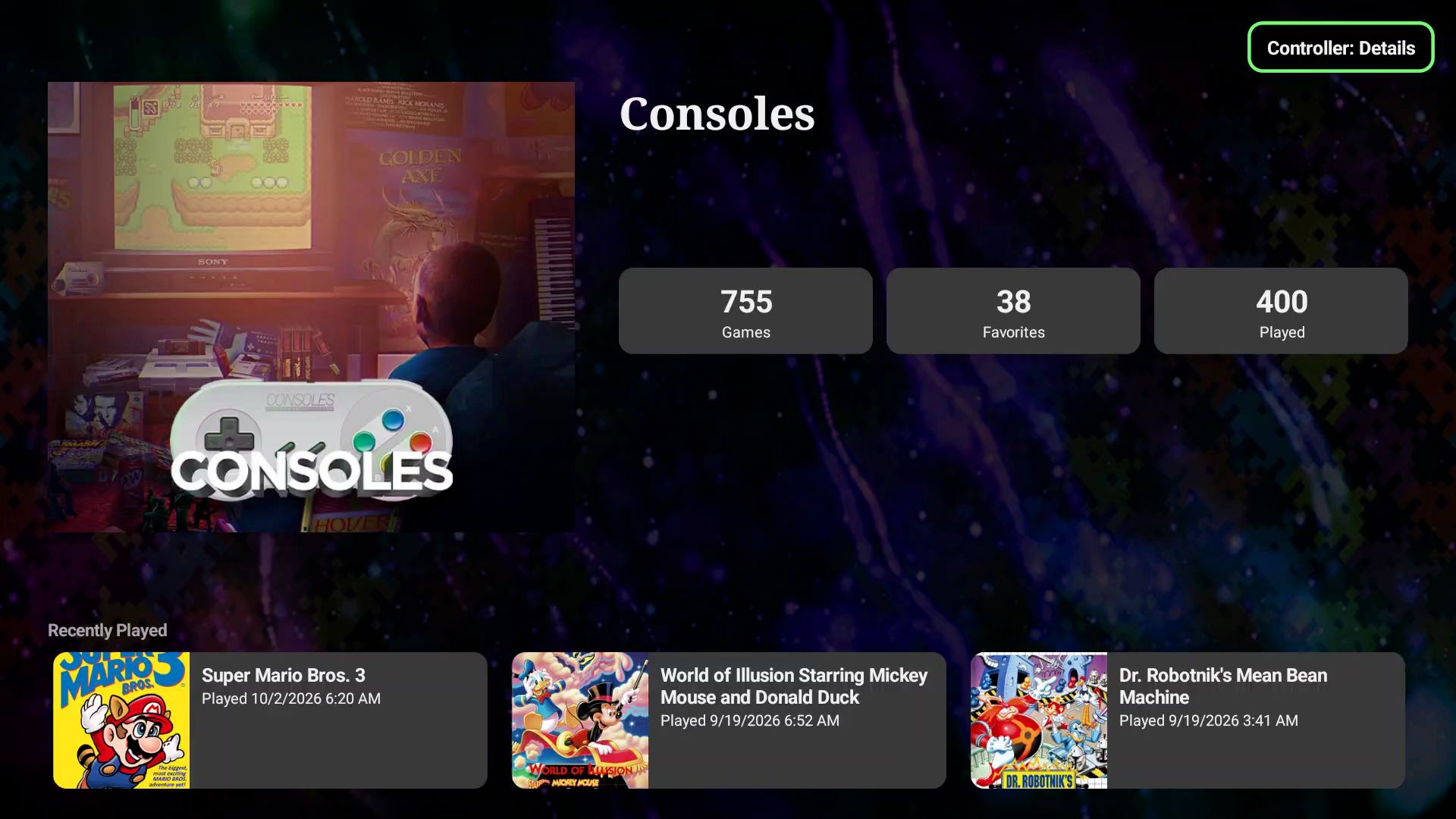
When browsing platforms, the details screen can show a Recently Played carousel for quick access to recent games.
🧭 Using Touch and a Controller
You can interact with the Library and Game Details screens using touch or a controller. Focus indicators help show which screen is receiving controller input.
On devices with separate displays, touching the Library or Game Details screen activates that screen for LaunchBox navigation. Check the focus indicator before moving through a list or selecting an action.
While browsing details with a supported controller, the directional controls move through selectable items, the confirm button activates the selection, and the back button returns or moves focus back toward the library as appropriate.
💡 If the controller appears to move the wrong screen, check focus first. Touch the screen you want to navigate and look for its active focus indicator.
⚙️ Customizing Second Screen Views
Open main menu > Options > Second Screen Views.
Select a page to open its available actions.
Adjust the pages and their order.
Leave the page when finished; changes are saved automatically.
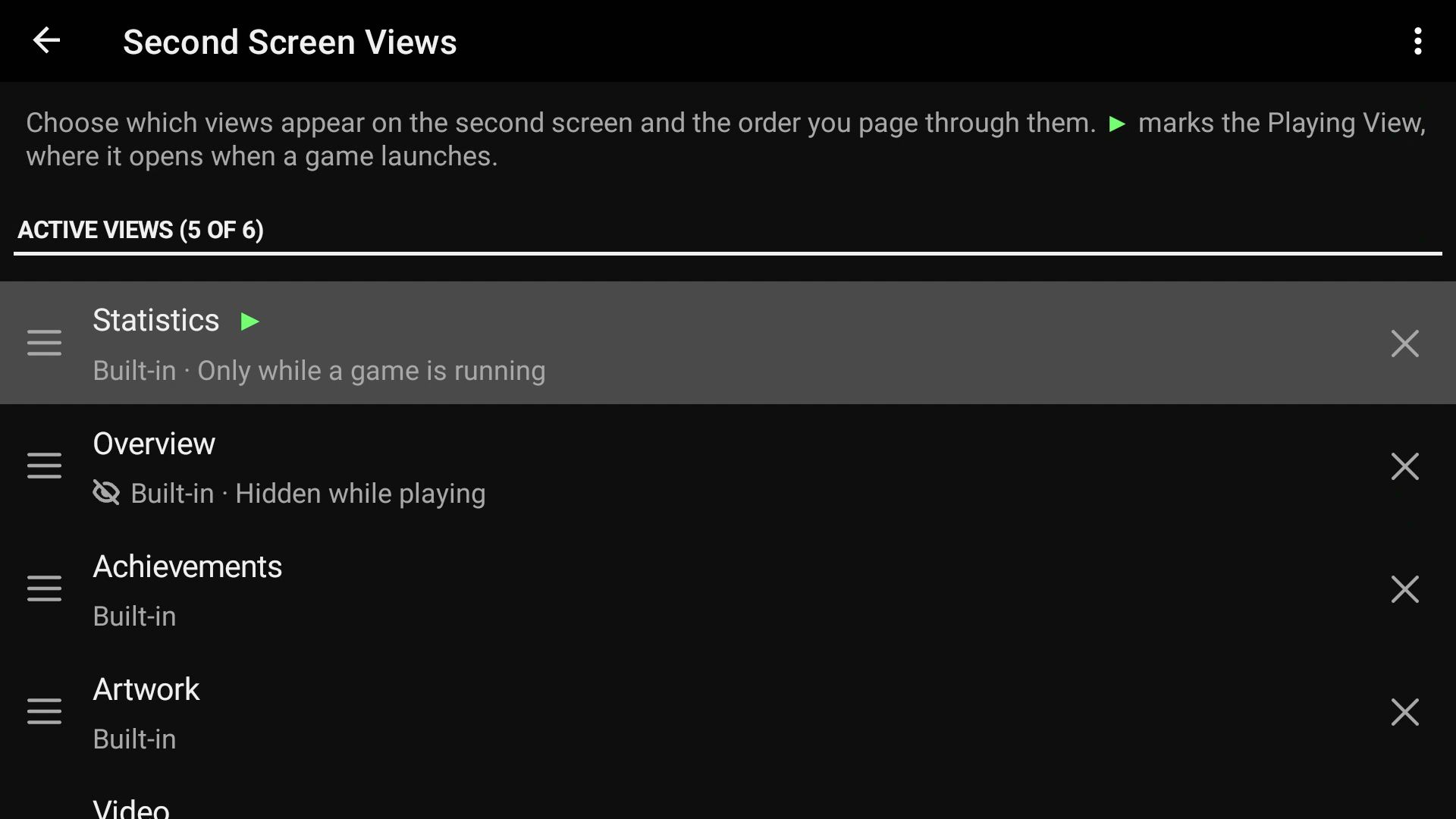
You can include up to six views, with at least one view retained.
Add, remove, or reorder pages
Select Add View to choose another available page.
Select a page and choose Move Up or Move Down to change its position.
Choose Remove to take a page out of your selected views.
Select Revert to Default and confirm if you want to restore the default layout.
Removing a view changes the layout; it does not delete your games or media. Additional pages supplied by installed themes may also appear in the available choices.
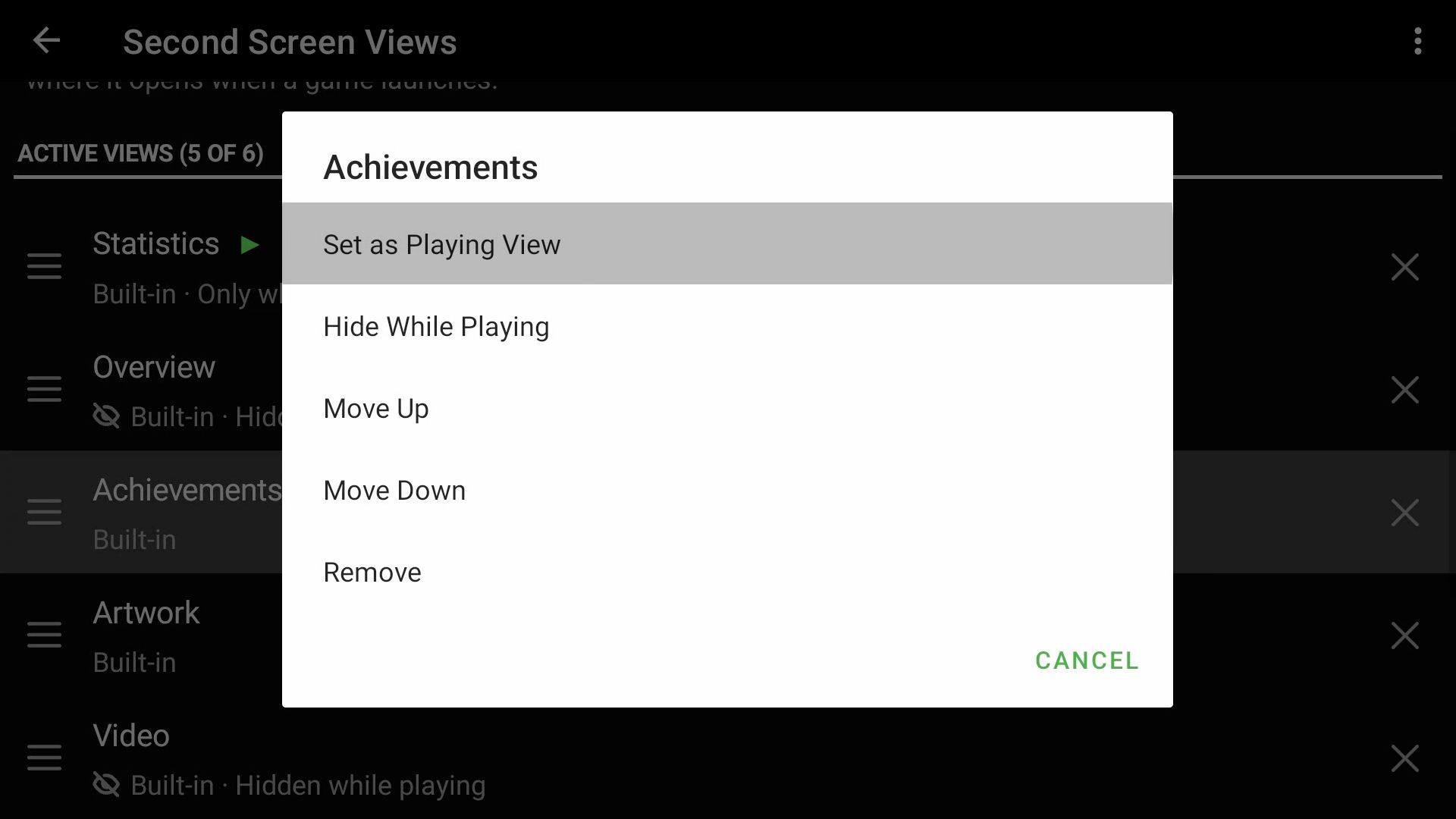
Choose the page shown when playing
Select the page you want, then choose Set as Playing View. LaunchBox opens that page on the companion screen when a game starts.
Choose Statistics for a session overview or Achievements if your priority is checking the next achievement goal.
Hide pages while a game runs
Select a page and choose Hide While Playing to omit it from the in game page sequence. Choose Show While Playing to make it available again.
The selected Playing View cannot be hidden while playing. Statistics is available only during a game session and cannot be hidden using this option.
💡 Start with the information you use most. Put Overview first for library browsing, choose Statistics or Achievements as your Playing View, and hide pages you do not need during a session.
🕹️ Using the Companion Screen While Playing
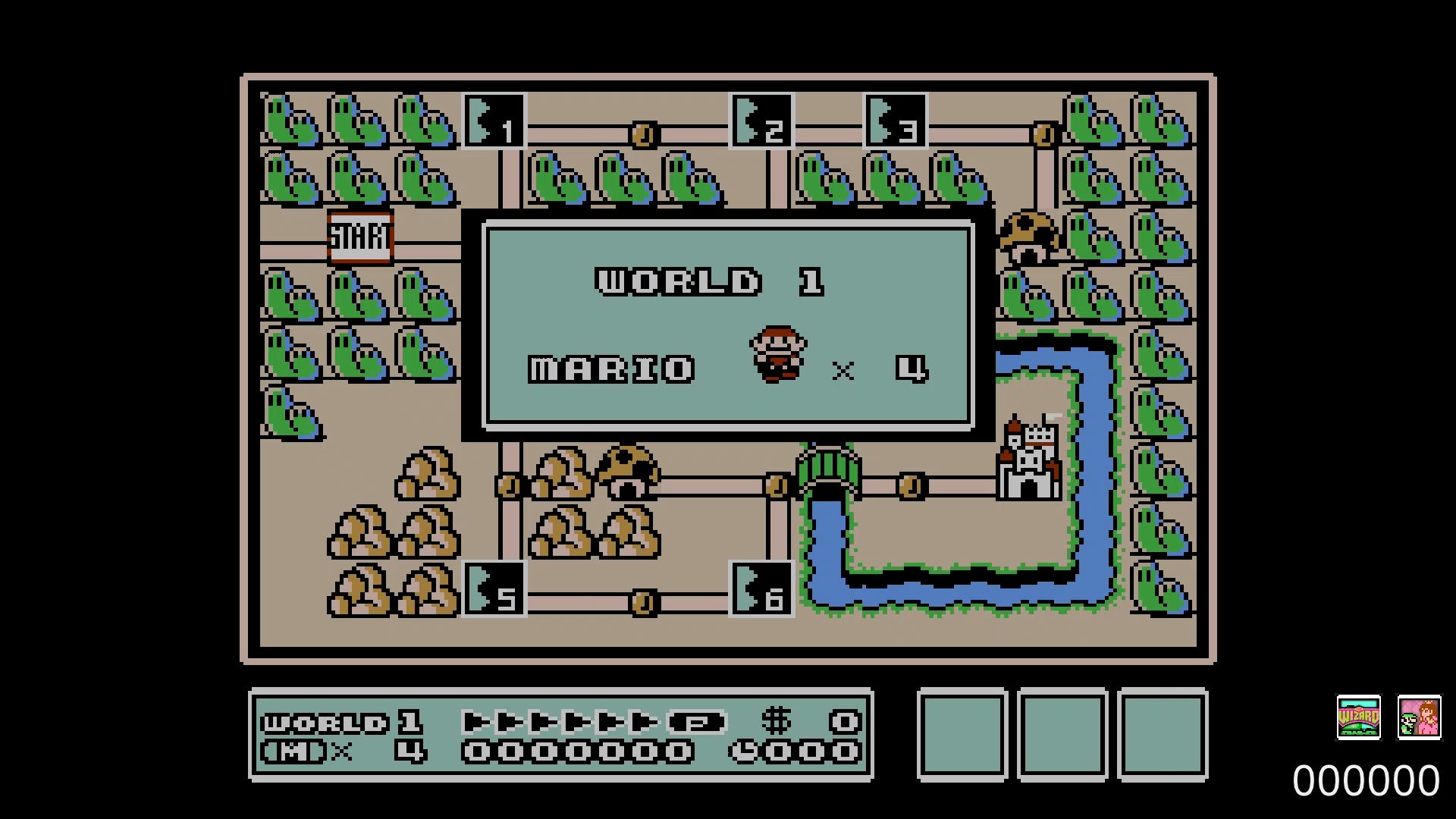
Launch a game through LaunchBox to start the companion experience on a supported device. Your emulator uses the selected game display, while LaunchBox can show session information on the remaining screen.
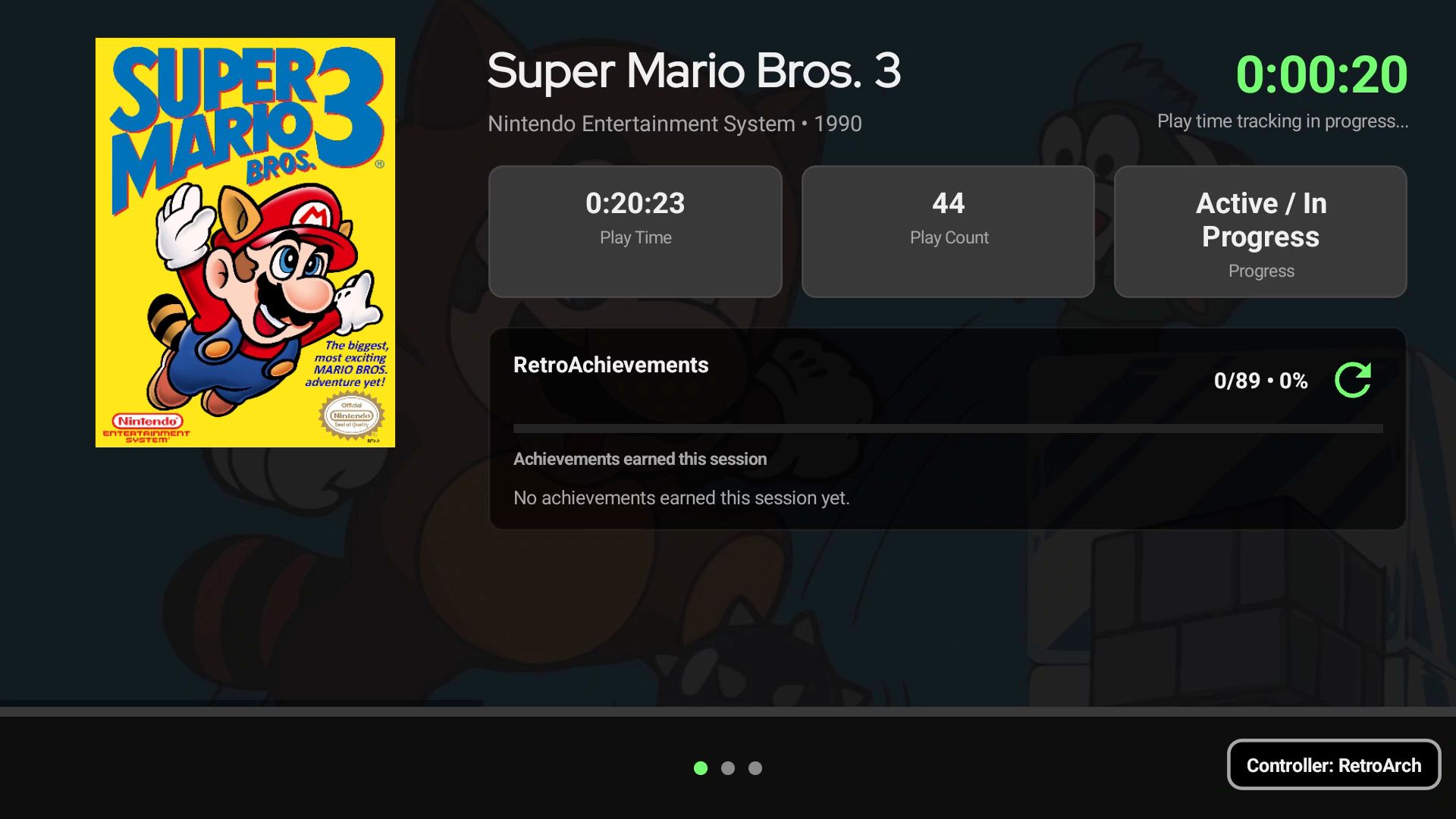
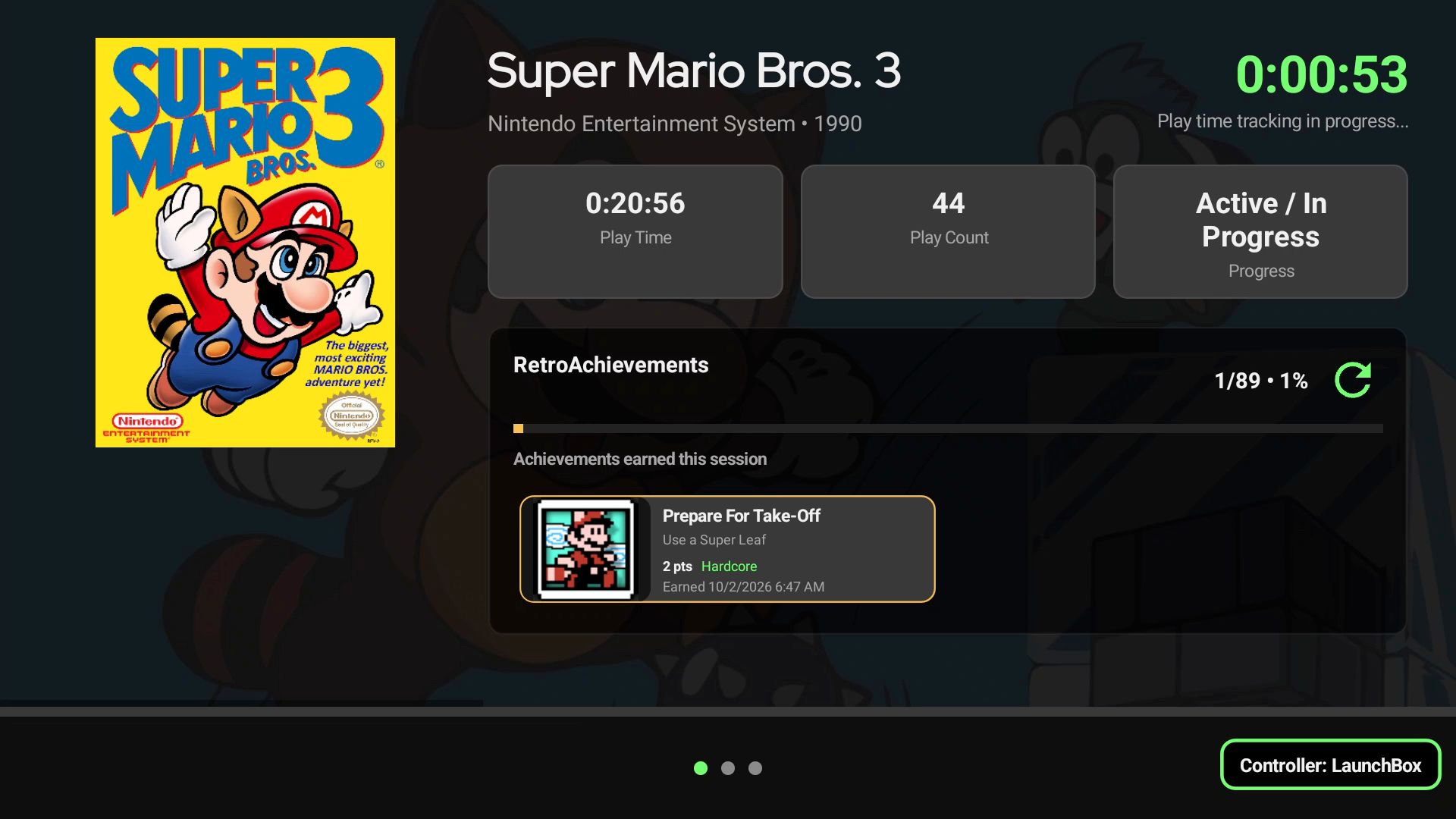
Depending on the selected page and available data, you can view session statistics, achievements earned during play, the achievement browser, and artwork.
The companion screen follows the Playing View and Hide While Playing choices you set under Second Screen Views.
⚠️ The emulator still controls the game. Interacting with LaunchBox can change which app receives controller input. Do not assume touching the companion screen pauses the game; use your emulator’s pause controls when needed.
🏆 Viewing RetroAchievements During Play
Connect your account under main menu > RetroAchievements to use the achievement features.
On the companion screen, open the Achievements page to browse a supported game’s set and recorded unlocks. You can inspect individual achievements and use the browser’s search, sorting, grouping, and filtering controls.
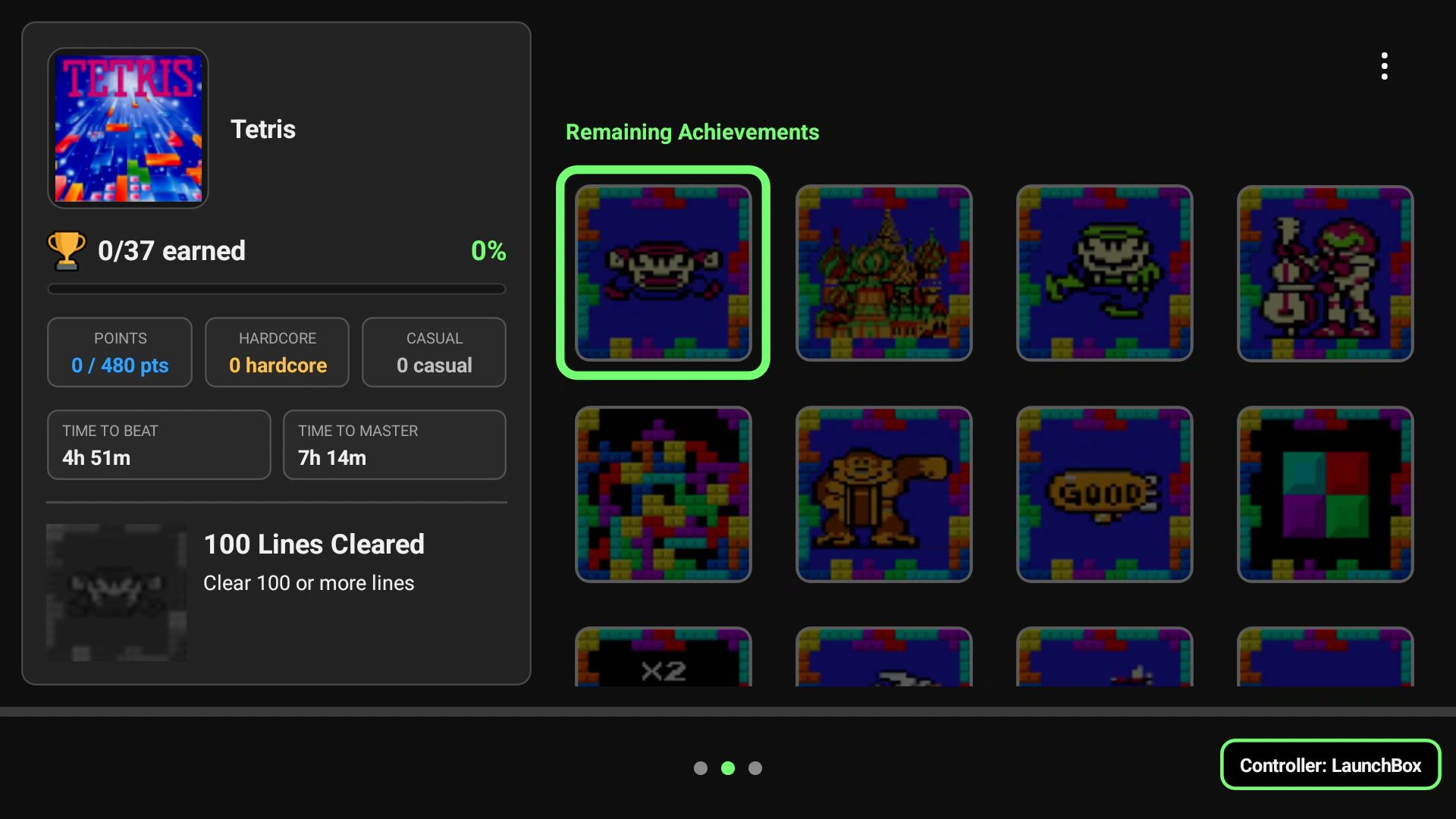
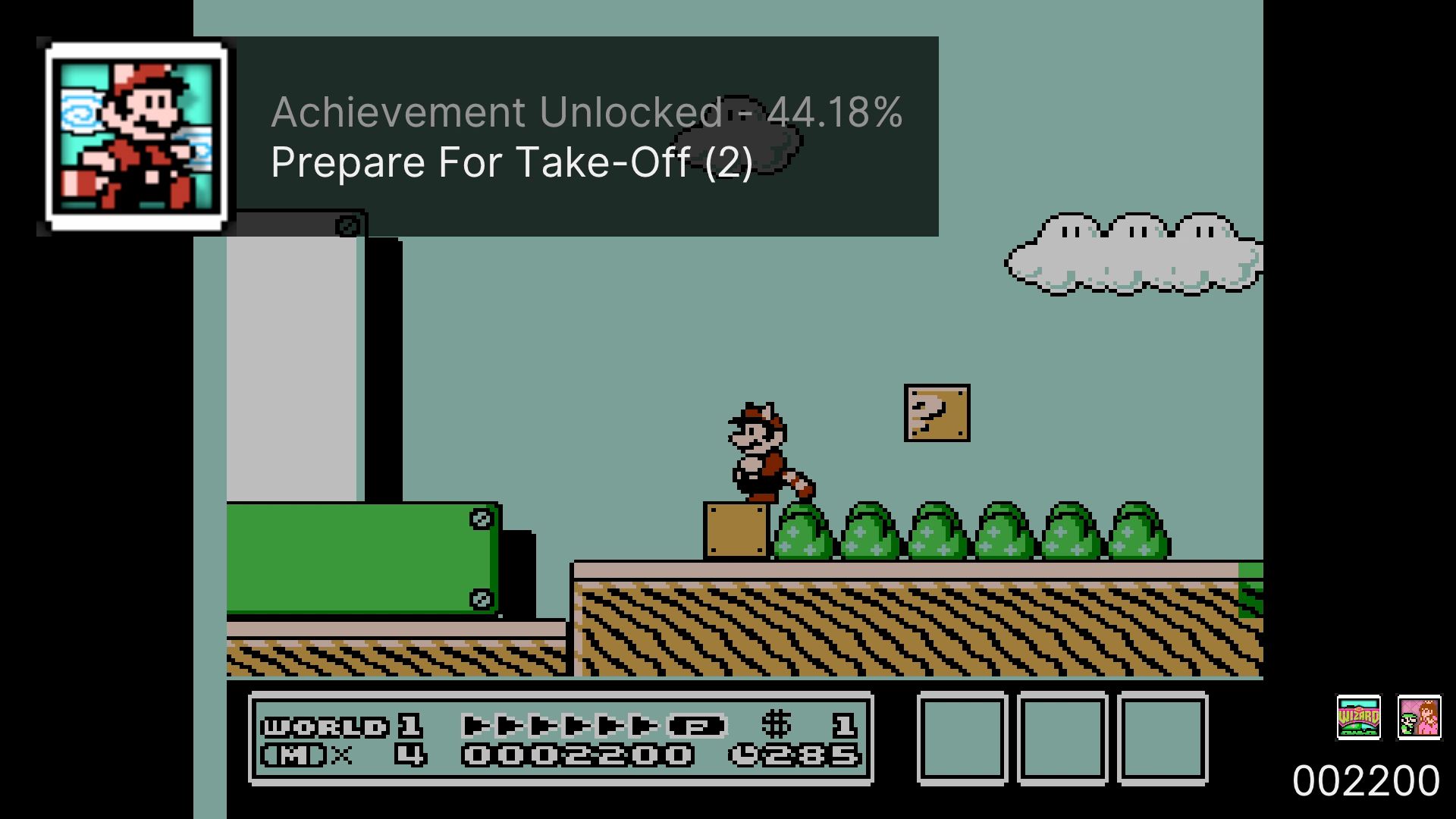
Achievement information refreshes periodically during play, when the achievement page is opened, or when you refresh it manually. Allow time for the emulator to upload new unlocks to RetroAchievements.
📌 Achievement updates come from RetroAchievements. The emulator awards achievements; LaunchBox retrieves the recorded progress. The companion display is not a guarantee of an immediate update at the moment an achievement unlocks.
📘 Related guide: [@mention placeholder: RetroAchievements in LaunchBox for Android]
🛠️ Troubleshooting
I cannot see the Second Screen options
Make sure you are using LaunchBox for Android 1.23 or later and that both displays are enabled or the app is spanned across the supported screens. These options depend on LaunchBox detecting dual screen capability.
If Android exposes only one display to LaunchBox, the separate screen options may not be available.
The library and details are on the wrong screens
Open main menu > Options and change Swap Library and Game Details Screens.
If the emulator opens on an unexpected screen, also check Play Games On where available and the emulator’s own display settings.
A details page is missing
Check main menu > Options > Second Screen Views. Make sure the page is added and, if a game is running, is not marked Hide While Playing.
Statistics appears only during a game session. Artwork and Video also depend on the game having suitable media available.
The controller is navigating the wrong screen
Check the focus indicator and touch the LaunchBox screen you want to control. During play, remember that the emulator and LaunchBox are separate apps and Android controls which one receives input.
I want to use a single screen again
Open main menu > Options and turn off Enable Second Screen.
Still need help? Ask the team