RetroAchievements in LaunchBox for Android
Written By launchbox
Last updated 4 days ago
RetroAchievements is a free service that adds achievements to classic games. Whether you’re replaying a favorite or discovering something new, achievements give you extra challenges and a way to track your accomplishments.
LaunchBox for Android brings your profile, achievement lists, and progress together alongside your games. It can also help configure RetroAchievements for RetroArch.
📌 Version requirement: This guide covers the expanded RetroAchievements features in LaunchBox for Android 1.23 or later.
🎮 Why Use RetroAchievements?
With RetroAchievements connected, you can:
Check your profile: See your scores, game completion statistics, recent activity, and leaderboard information inside LaunchBox.
Plan your next challenge: Browse achievements before playing, read their requirements, and find the ones you still need.
Track your progress: See earned achievements, points, and completion percentages for supported games.
Simplify RetroArch setup: Let LaunchBox apply your RetroAchievements login when launching supported games.
Review your latest unlocks: Receive optional LaunchBox notifications after returning from a play session.
💡 LaunchBox displays your achievements; your emulator awards them. You still need an emulator, and, for RetroArch, a core, that supports RetroAchievements for the game you’re playing.
✍️ Creating a RetroAchievements Account
If you already have an account, you can use it with LaunchBox.
Visit RetroAchievements and create an account.
Complete any account verification requested.
Sign in and open your account settings.
Find the Keys section and copy your Web API Key.
LaunchBox’s sign in screen asks for your Username, Web API Key, and Password. The Web API Key lets LaunchBox access your achievement information; your password is also required to connect the account for emulator login.
🔑 Connecting Your Account to LaunchBox for Android
Open LaunchBox’s main menu.
Select RetroAchievements.
Select Log in to RetroAchievements.
Enter your Username, Web API Key, and Password.
Select Login.
Once connected, the RetroAchievements page shows your profile and account options.
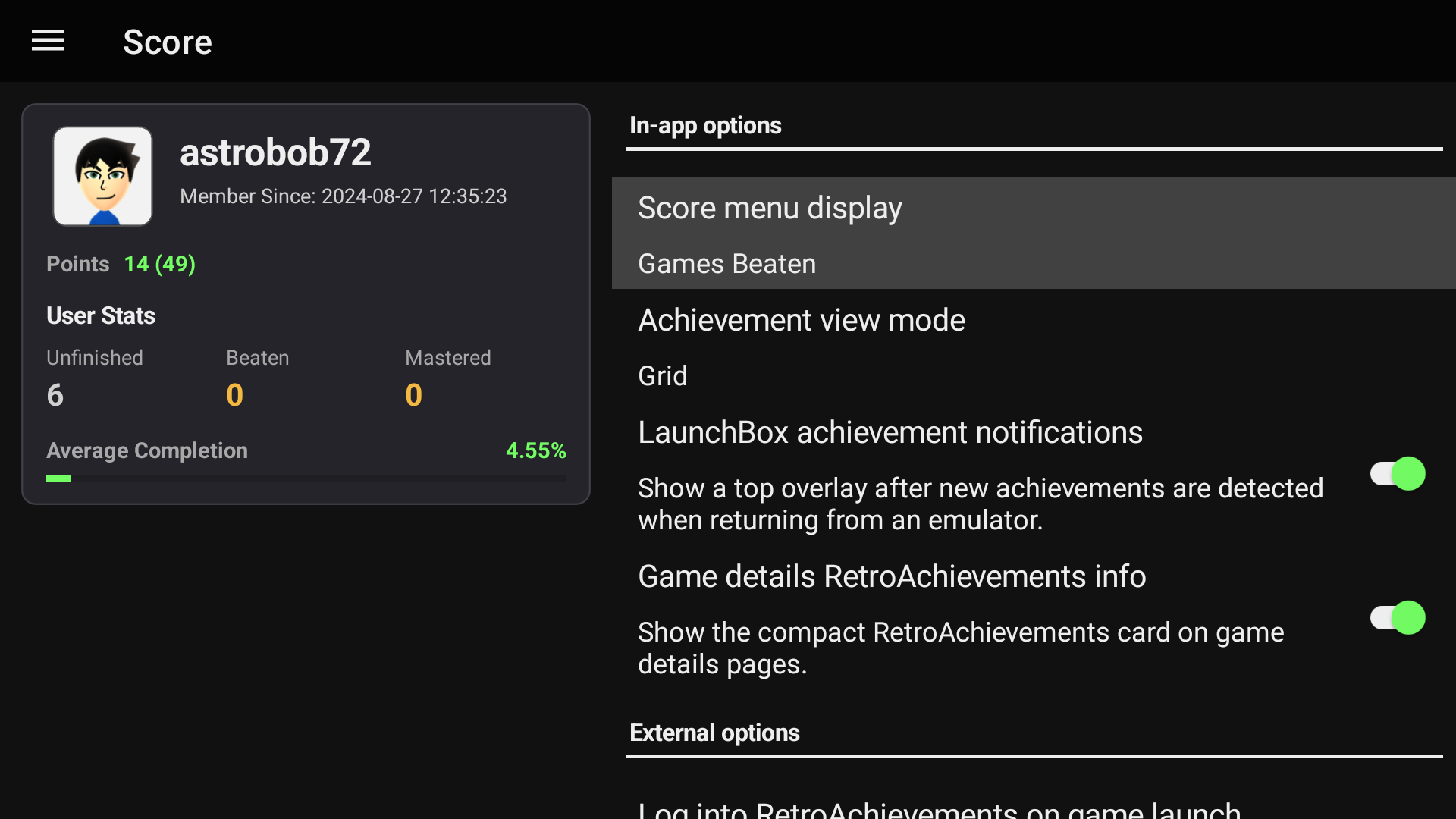
The account page separates settings into two groups:
In app options: Control achievement browsing, the main menu statistic, game details information, and LaunchBox notifications.
External options: Control applying your login to RetroArch and requesting Hardcore mode when that login configuration is enabled.
Connecting your account in LaunchBox does not automatically configure every Android emulator. Other emulators may need their own RetroAchievements setup.
🏠 Using the RetroAchievements Home
Open main menu > RetroAchievements whenever you want to review your account.
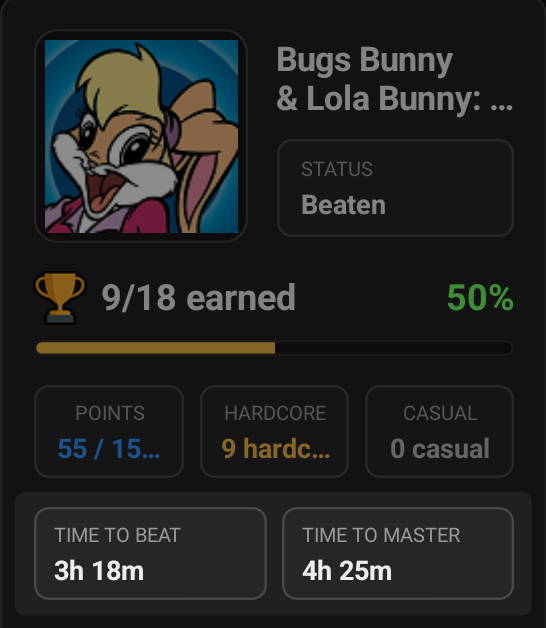
The profile summary includes information such as your profile image, points, unfinished games, beaten games, mastered games, and average completion, where available.
You can also open:
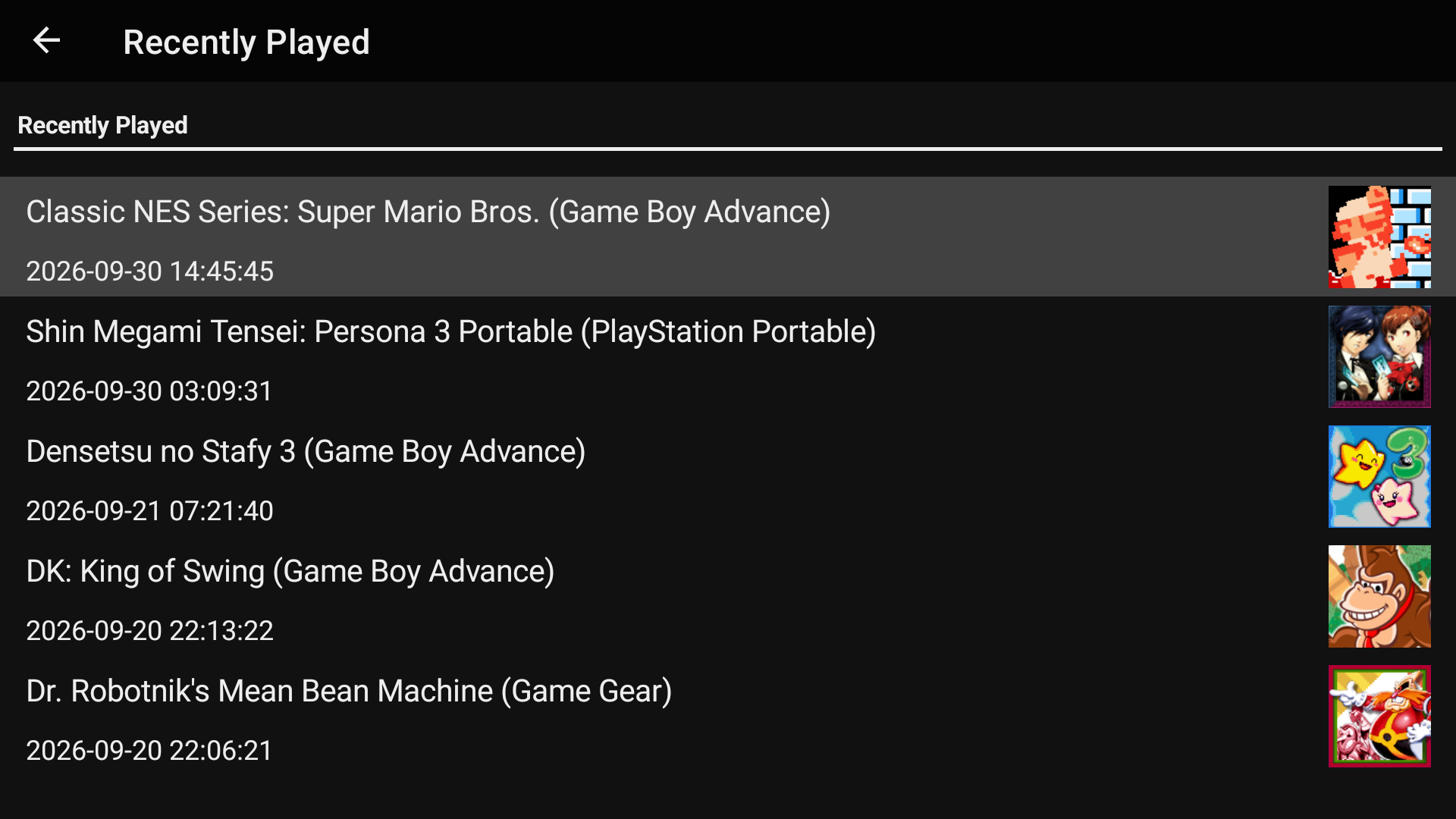
Recently Played: Review recent games reported by RetroAchievements and their achievement progress.
Recent Activity: See recent achievement unlocks.
Global Leaderboard: View leaderboard information and your ranking where available.
Refresh: Request updated account information.
These are RetroAchievements account statistics, so they can include activity from other devices using the same account.
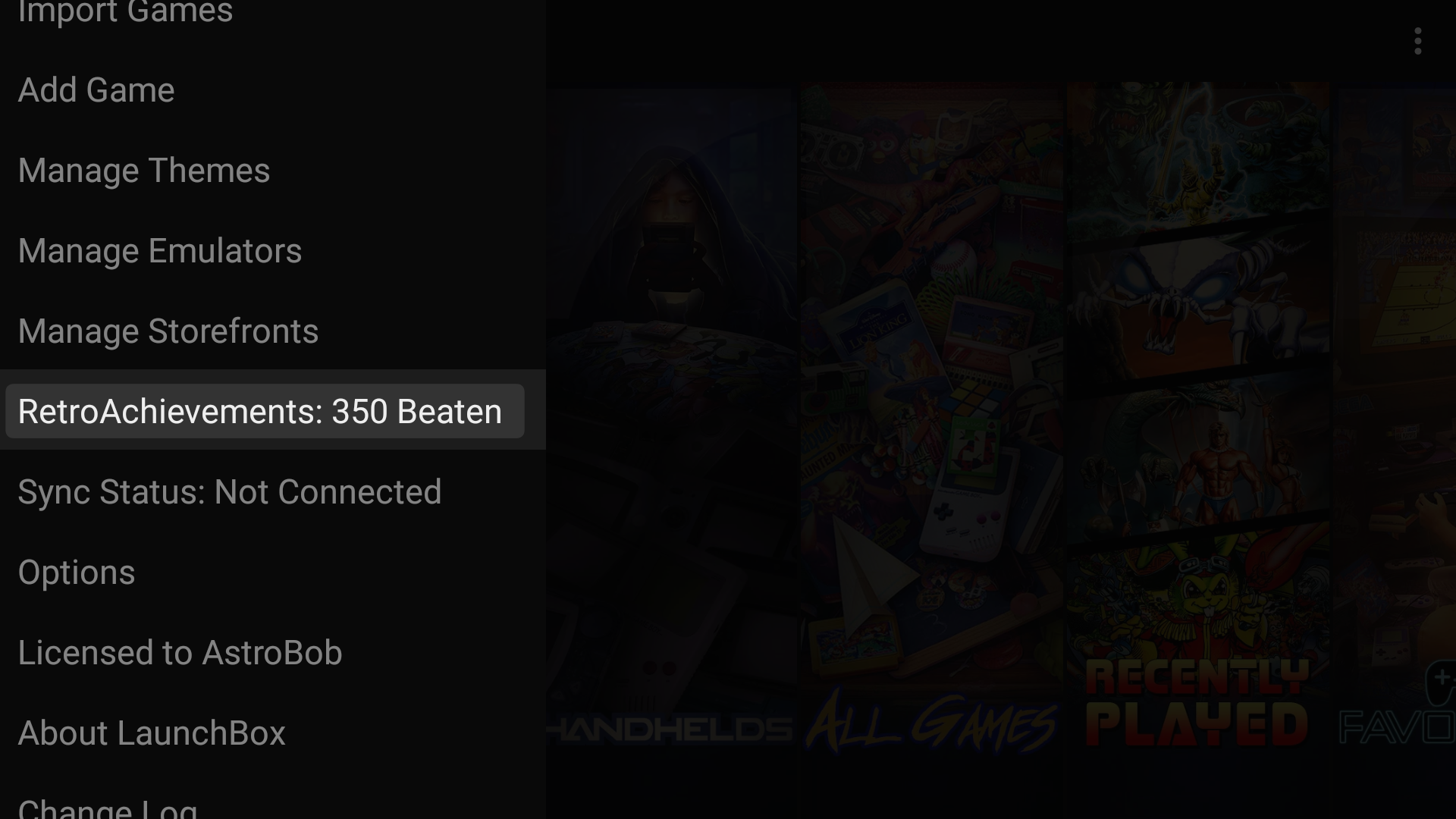
Choosing the main menu statistic
The main menu can also display a RetroAchievements statistic beside its name.
Open main menu > RetroAchievements.
Under In app options, select Score menu display.
Choose Hardcore Points, Retro Points, Casual Points, Games Beaten, Site Rank, or Achievements Unlocked.
For example, choose Games Beaten if finishing games matters more to you than building your points total.
🧾 Viewing Achievements for a Game
Find a game in your library.
Open its game menu, for example, by long pressing the game.
Select Achievements.
LaunchBox loads the game’s achievement set and your recorded progress. Supported game details views can also show a compact RetroAchievements summary.
Grid and List views
Choose your preferred layout under main menu > RetroAchievements > In app options > Achievement view mode:
Grid: Browse square achievement tiles with a compact overview.
List: Read achievements in rows with more information visible.
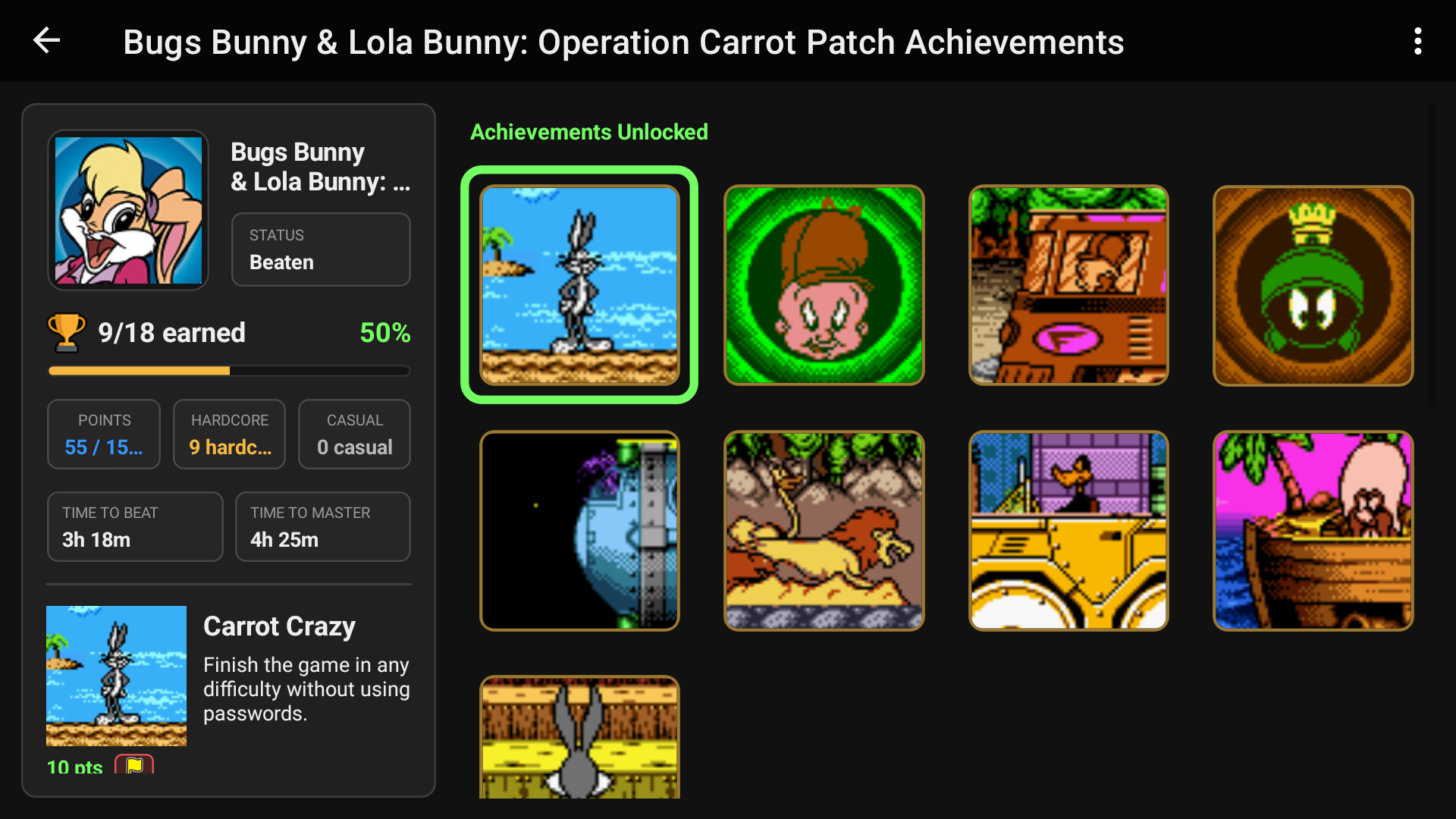
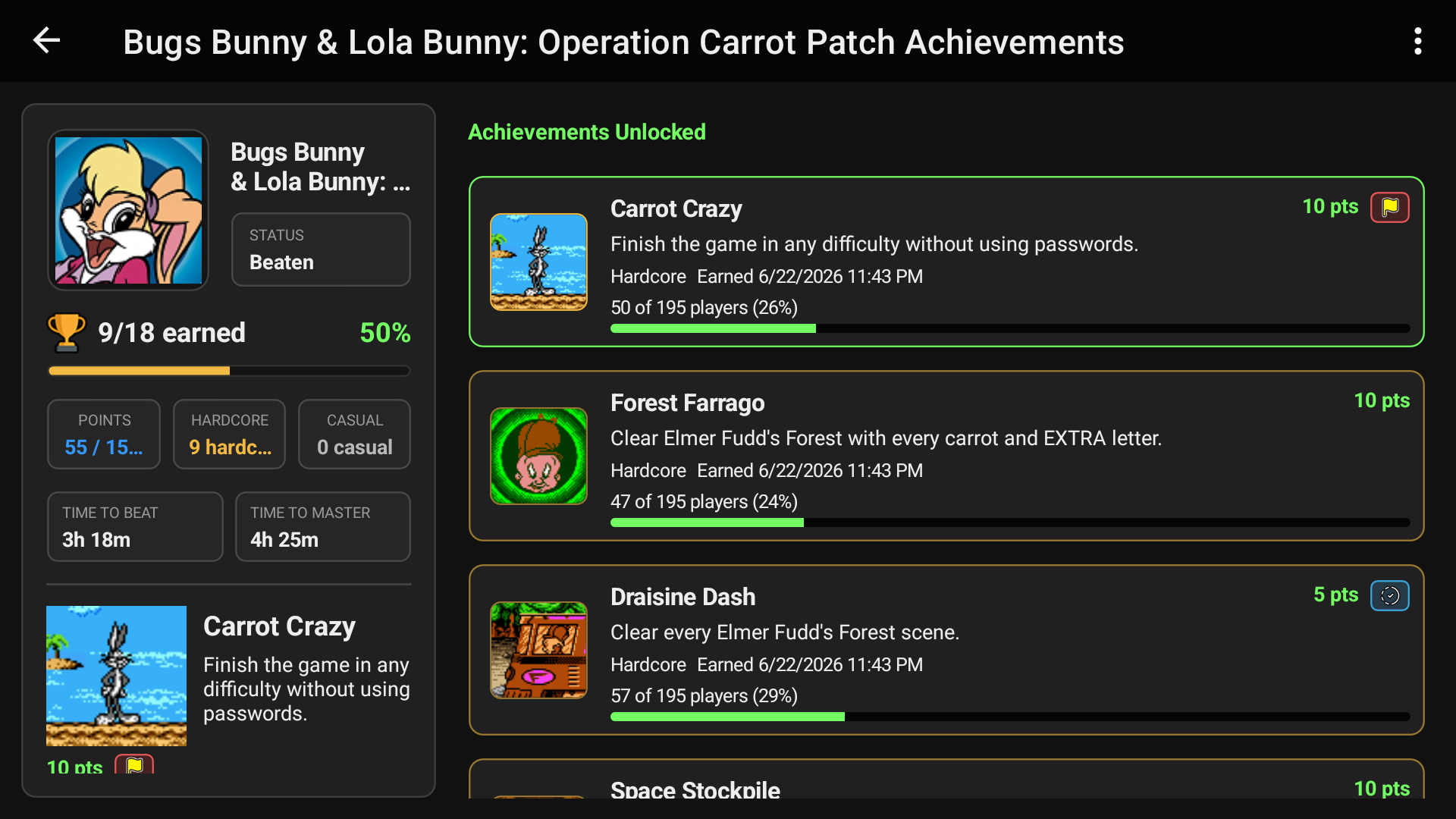
Both layouts distinguish earned achievements from locked ones. Hardcore unlocks are identified separately.
Depending on the information available, you’ll see achievement requirements, point values, unlock rates, earned dates, and achievement type badges. The game summary can also include estimated times to beat and master the set.
Unlock rates show how many players have earned an achievement. They help you judge how common an unlock is, but are not a guarantee of difficulty.
⏱️ Time estimates are a guide. Beat and master estimates come from RetroAchievements player data. They describe achievement milestones rather than a guaranteed story completion time, and some games do not have estimates.
Opening achievement details
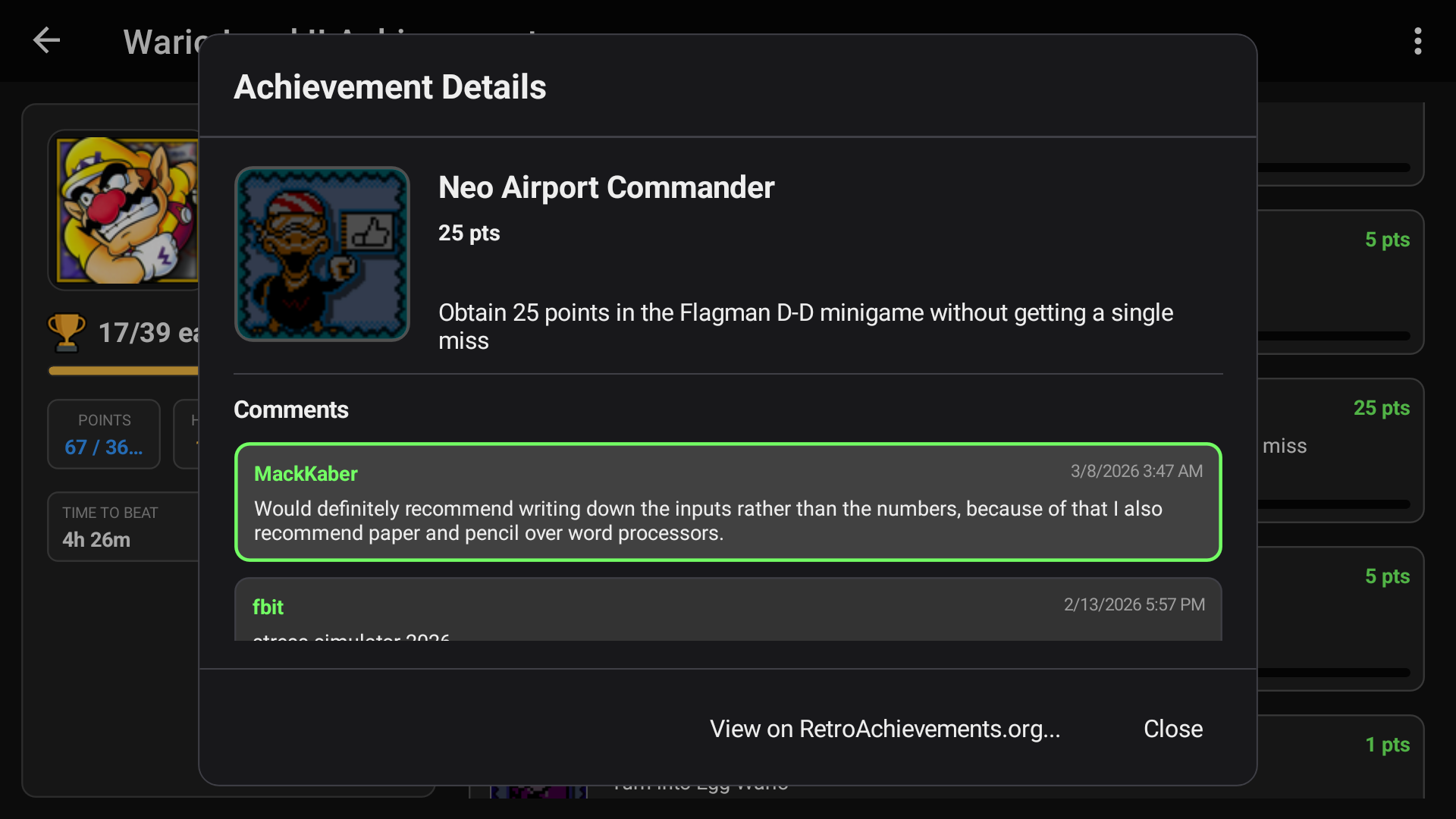
Tap an achievement once to select it, then tap the same achievement again to open its details.
The details window shows its requirements, points, and recorded unlock information. It also includes Comments, where available, pulled directly from the RetroAchievements website.
These comments can be a useful source of tips and strategies from real players who have tackled the same achievement. You can read their advice without leaving LaunchBox, handy if you’re stuck or want to plan your approach.
If you’d like to visit the website to explore further or join the discussion, select View on RetroAchievements to open the achievement’s page.
🔎 Searching, Sorting, Grouping, and Filtering
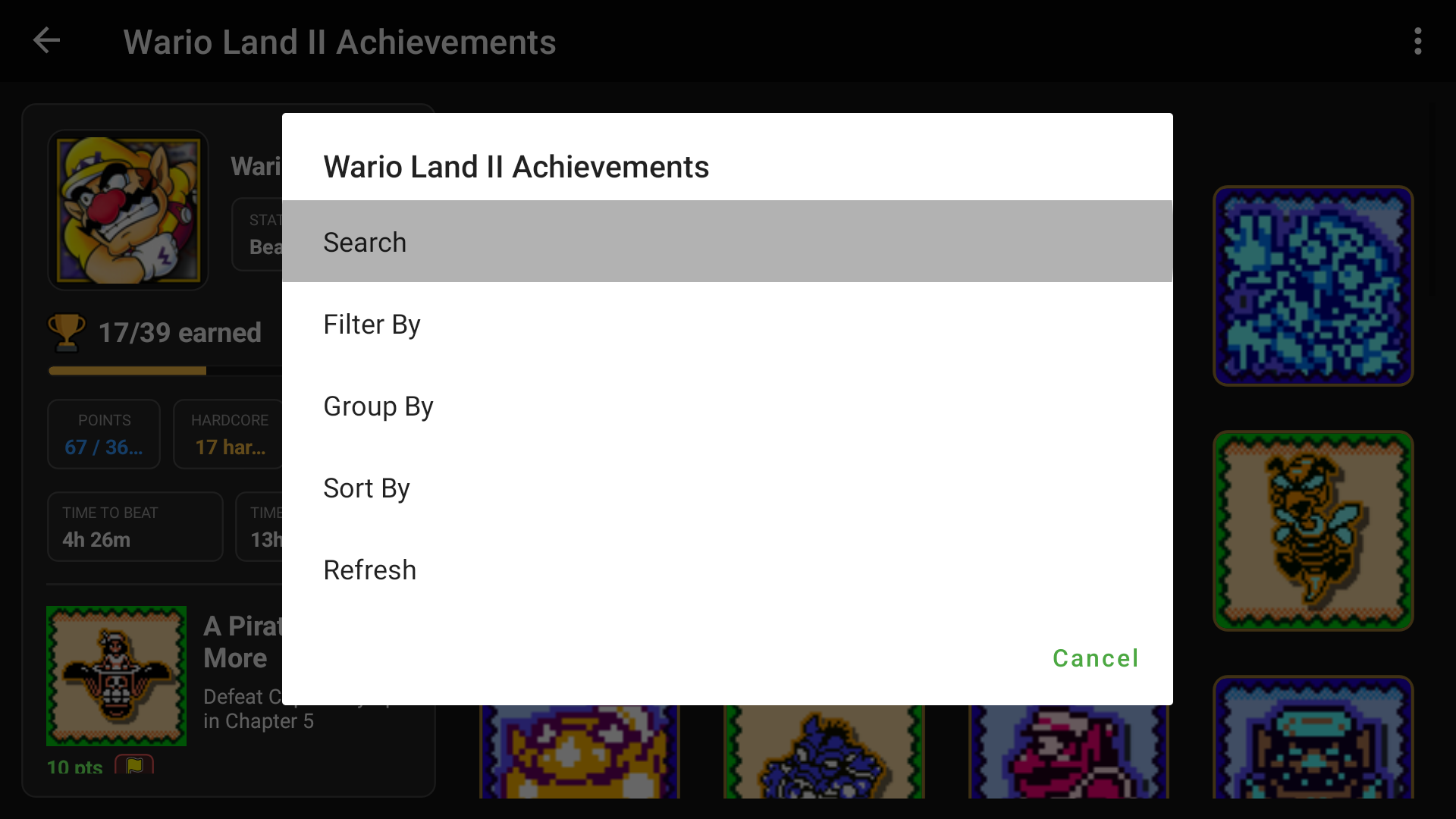
Open the achievement page’s three dot menu (⋮) to find Search, Filter By, Group By, Sort By, and Refresh.
Search
Select Search, enter a word or phrase, and select OK. LaunchBox searches achievement titles and descriptions.
To clear the search, open Search again, remove the text, and select OK.
Sort and group
Sort By offers:
Progression Order
Name
Points
Unlock Status
Achievement Type
Choosing the current sort option again reverses its direction.
Group By offers None, Points, Unlock Status, and Achievement Type. Grouping divides the achievement set into sections; sorting controls the order within those sections.
For example, if you’re returning to a game after a break, choose Group By > Unlock Status and Sort By > Progression Order. This separates earned and locked achievements while keeping each group in the set’s intended order, making it easier to review what you’ve done and decide what to tackle next.
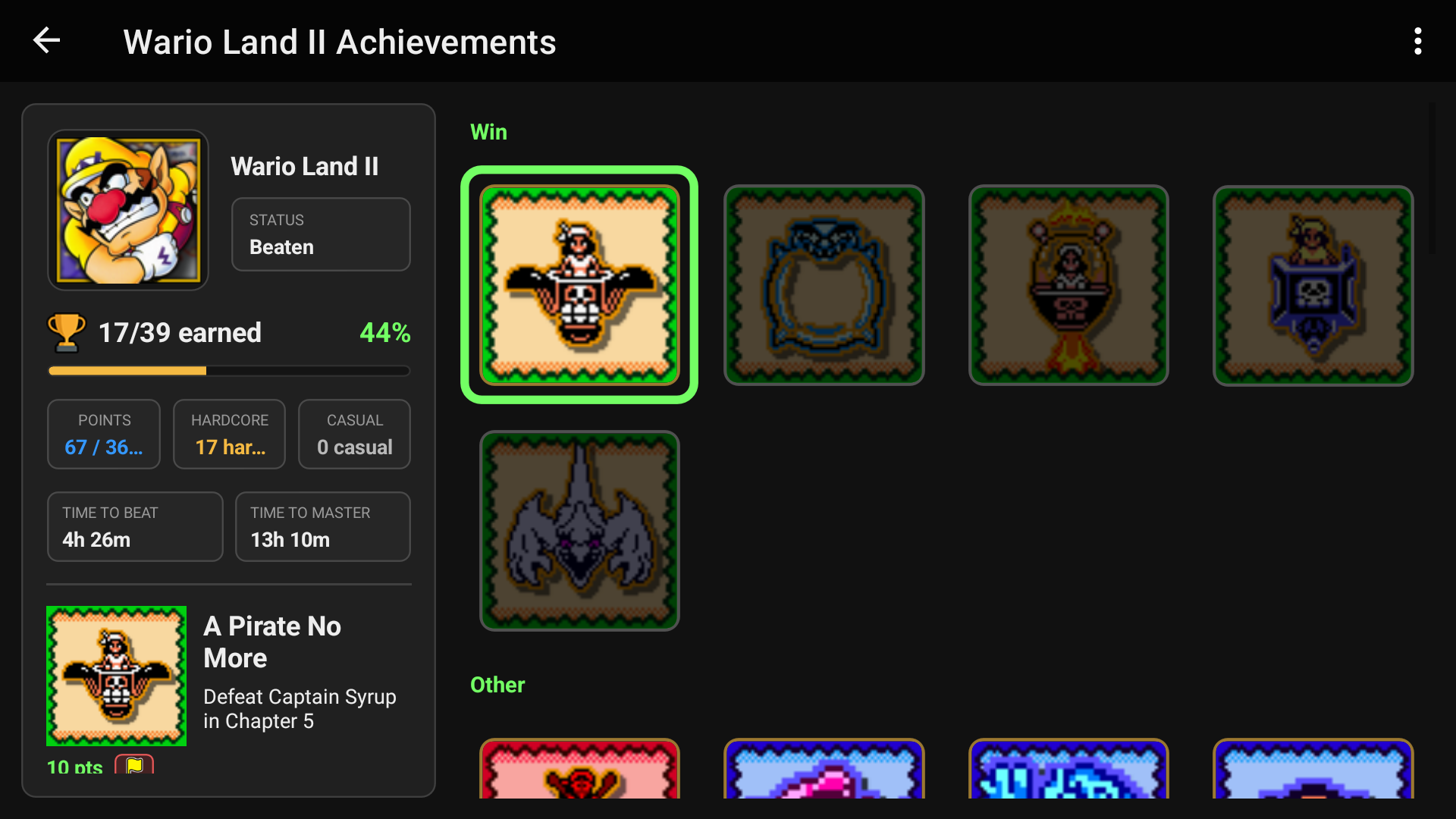
Filter
Filter By offers:
All: Show the full set.
Earned: Show achievements you have unlocked.
Not Earned: Show locked achievements.
Progression: Show achievements marking key stages of the game.
Missable: Show achievements identified as potentially missable.
Win: Show win condition achievements.
Other: Show achievements without one of those designated types.
If you’re working toward full completion, choose Filter By > Not Earned to hide achievements you’ve already unlocked and focus on what’s left.
If you’re playing through a game for the first time and want to focus on its main milestones, choose Filter By > Progression. This narrows the list to achievements marking key stages, helping you follow your progress without browsing every optional challenge. This filter shows both earned and locked progression achievements.
Before starting a playthrough, Filter By > Missable can also help you spot goals you may need to plan for.
💡 Missing an achievement? Search and filters work together. Clear your search and choose Filter By > All to return to the complete set.
📊 RetroAchievements on Game Details Pages
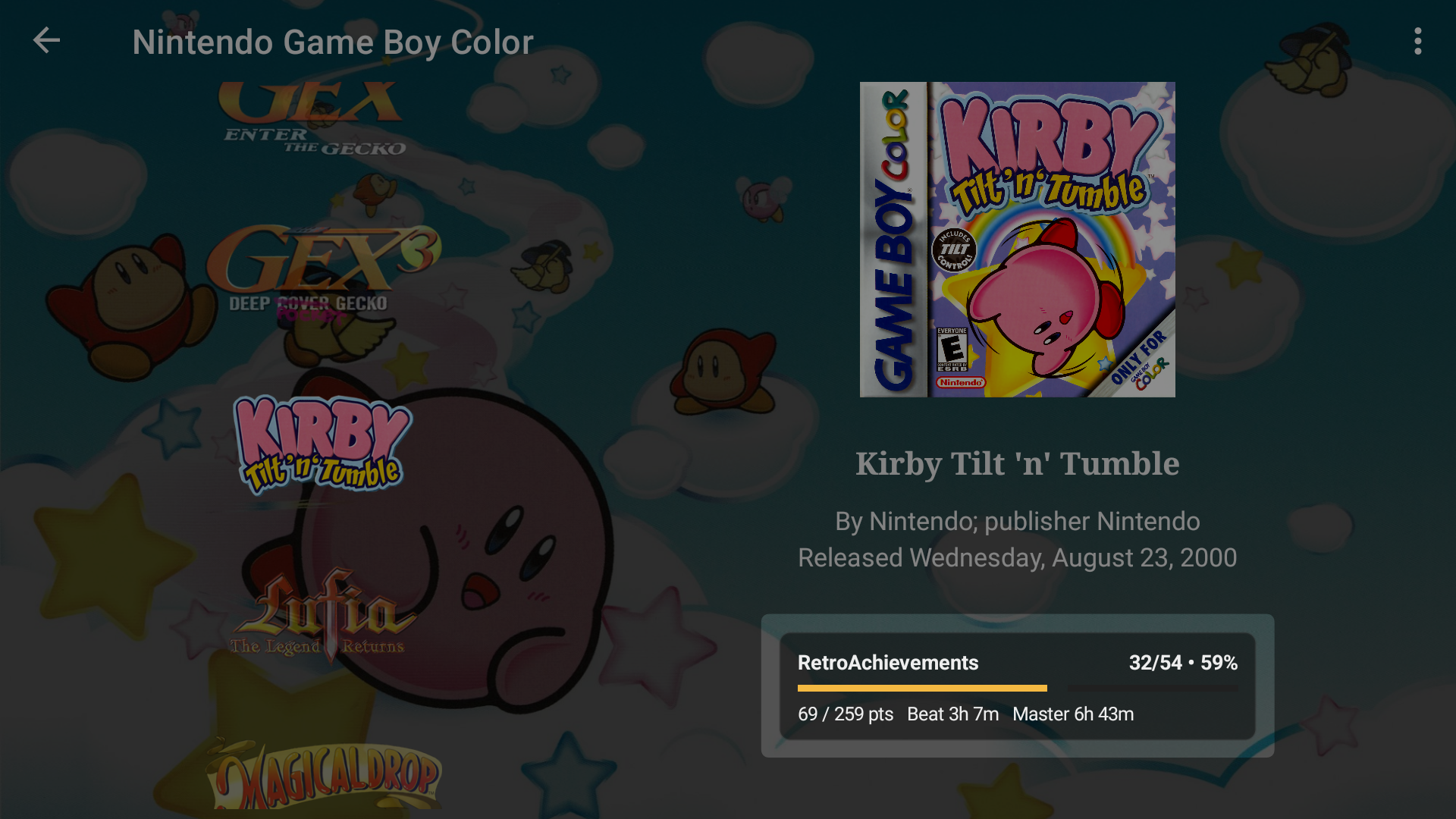
Supported game details views can display a compact RetroAchievements card containing:
Earned achievements and the total available.
Completion percentage.
Earned points.
Estimated beat and master times, where available.
To show or hide the card:
Open main menu > RetroAchievements.
Under In app options, turn Game details RetroAchievements info on or off.
The card’s placement depends on the view or theme you use. Hiding it does not remove your account connection or your achievements.
⚙️ Configuring Supported Emulators
LaunchBox for Android includes automatic RetroAchievements credential configuration for supported RetroArch installations.
Using RetroArch
Connect your RetroAchievements account in LaunchBox.
Open main menu > RetroAchievements.
Under External options, enable Log into RetroAchievements on game launch.
Choose whether to enable Hardcore mode.
Launch a game through LaunchBox using RetroArch and a compatible core.
LaunchBox applies your account and mode preference for that launch while incorporating your existing RetroArch settings.
To check which emulator a platform uses, long press the platform and select Emulator Settings. A game’s own menu also offers Emulator Settings for game specific configuration.
If you prefer to manage RetroAchievements inside RetroArch yourself, disable Log into RetroAchievements on game launch.
Casual and Hardcore modes
Casual: Lets you earn achievements without Hardcore restrictions.
Hardcore: Restricts features such as loading save states, cheats, and rewind. Earning the full achievement set in Hardcore is required for mastery.
See the official RetroAchievements FAQ for the mode rules.
⚠️ The emulator controls the active mode. LaunchBox’s Hardcore setting applies to its supported RetroArch login configuration. It does not enforce Hardcore mode across every emulator or core. Check the emulator’s achievement status when the game starts.
For other Android emulators, configure RetroAchievements inside the emulator if it supports the service. Check the official emulator support guide for compatibility.
🔔 Achievement Notifications
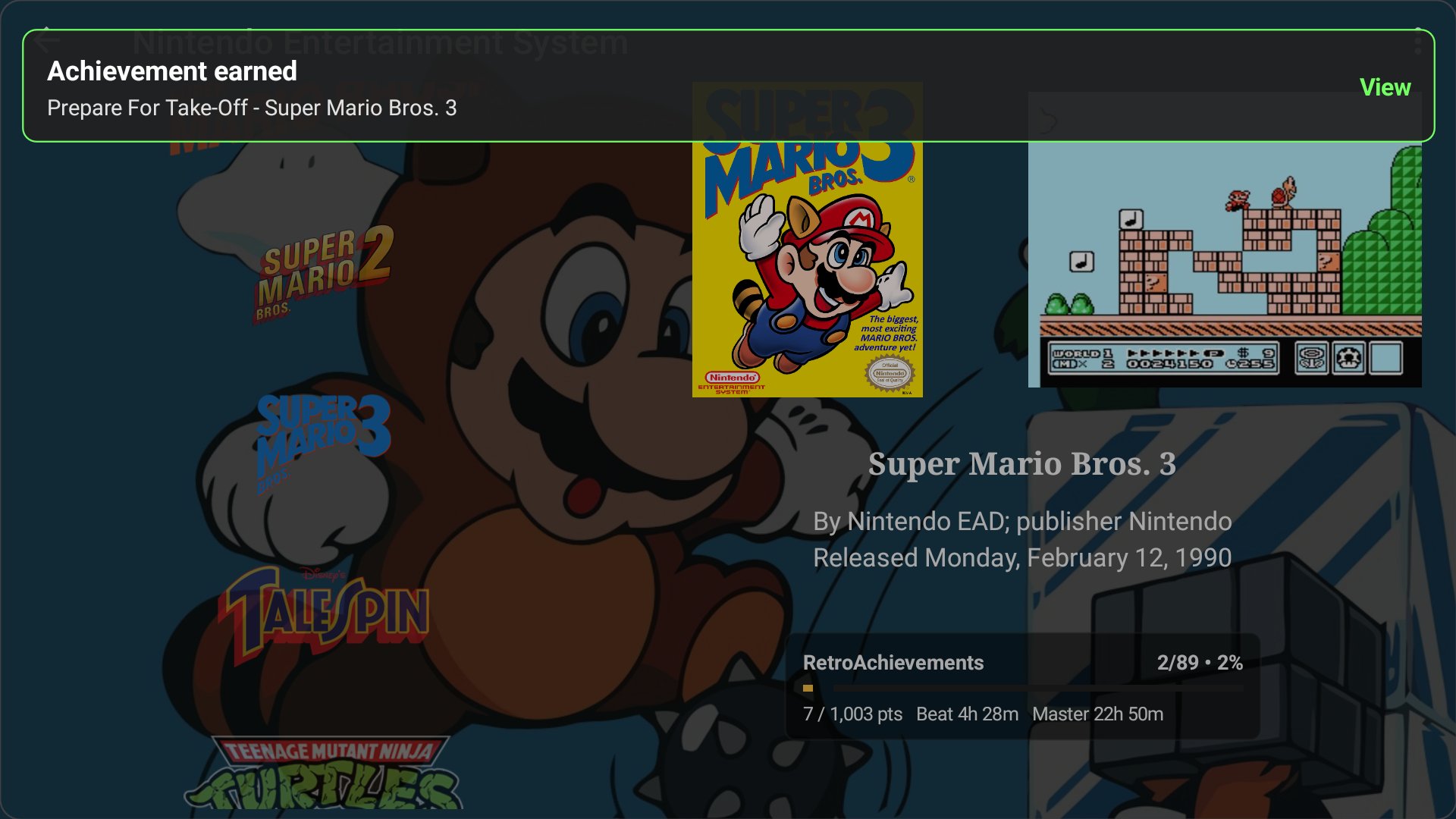
After you launch a supported game through LaunchBox and return from the emulator, LaunchBox can check RetroAchievements for newly recorded unlocks and display a notification overlay.
To control these notifications:
Open main menu > RetroAchievements.
Under In app options, turn LaunchBox achievement notifications on or off.
📌 These are post session checks. LaunchBox compares your achievement information before and after play. It does not directly detect every unlock inside every emulator.
A notification depends on LaunchBox identifying the game and successfully retrieving its progress. If the emulator has not uploaded the unlock yet, or the connection fails, the notification may not appear.
Turning off LaunchBox notifications does not disable achievements or the emulator’s own notifications. You can still open the game’s Achievements page and select Refresh.
📱 Dual Screen Devices
On supported dual screen devices, LaunchBox can keep game details available on a separate screen while your emulator runs. The companion screen can show session statistics, achievements earned during play, and an achievement browser.
Use main menu > Options > Second Screen Views to choose which details pages appear and which page opens while a game is running.
📘 Related guide: Using Dual Screens in LaunchBox for Android
🛠️ Troubleshooting
I cannot connect my account
Check that you entered your RetroAchievements username, password, and Web API Key correctly. Use the Web API Key from the same account’s settings, and check for spaces accidentally added when copying it.
If you regenerated the key or changed your password, sign in again using the current credentials.
A supported game does not show achievements
Confirm you are connected under main menu > RetroAchievements.
Open the game’s Achievements page and select Refresh.
Clear any search and choose Filter By > All.
Check that the game has an achievement set on RetroAchievements.
Check the game’s title, platform, and emulator compatibility.
If a whole platform is affected, check its platform mapping before troubleshooting individual games.
How does LaunchBox match my game to RetroAchievements?
LaunchBox uses an existing RetroAchievements match when one is already saved. Otherwise, it identifies the platform and tries to match your game file using its hash, an identifier for that particular file. If no hash match is found, it falls back to matching the game’s title within that platform.
Title matching ignores differences such as capitalization, punctuation, and bracketed region information, but a custom title, spelling difference, or alternate name can still prevent a match. If multiple entries remain ambiguous, LaunchBox may not identify the correct achievement set.
If achievements are missing:
Find the game on RetroAchievements and check its title and platform.
In LaunchBox, long press the game and select Edit Metadata.
Check that the title identifies the same game. Correct spelling errors or a custom name if needed.
Check the platform’s Scrape As setting if the platform uses a custom name.
Open the game’s Achievements page and select Refresh.
💡 The name matters when LaunchBox falls back to title matching. A title match can display an achievement set, but it does not confirm that your particular game file is supported. The emulator must still recognize a compatible file to award achievements.
My platform has a custom or alternate name
LaunchBox uses platform names, known metadata aliases, and Scrape As information to help identify the correct RetroAchievements system.
Long press the platform.
Select Edit Metadata.
Check Scrape As and select the appropriate standard platform.
Save your changes, then refresh the affected game’s achievements.
You can retain a custom display name while using Scrape As to identify the underlying system.
Information will not load while offline
LaunchBox needs access to RetroAchievements to retrieve current progress. Previously loaded information may remain available, but it can be out of date.
Check your internet connection and whether the RetroAchievements website opens. If necessary, try another network or check whether your VPN, Private DNS, or network filtering is blocking access. Then select Refresh.
🌐 Stay connected when earning achievements. RetroAchievements requires an internet connection when starting a play session. If your connection drops during play, keep the emulator open until it reconnects and uploads your achievements. See its offline guidance.
My emulator awards achievements, but LaunchBox does not show them
Check that LaunchBox and the emulator use the same RetroAchievements account. Confirm you are viewing the same game and platform, then refresh the game’s achievement page.
An emulator recognizing your game does not guarantee that LaunchBox has matched its library entry correctly.
When should I check the game file or hash?
If the emulator does not recognize the game, or identifies a different game, check the supported game files listed on the RetroAchievements game page. Region, revision, patches, and file format can affect compatibility.
A hash is simply an identifier for a particular game file. You normally do not need to calculate it yourself. RetroArch can show it under Quick Menu > Information > RetroAchievements Hash, as explained in the RetroAchievements FAQ.
📌 Displaying a set is not a compatibility test. LaunchBox may find an achievement set by title even when your particular game file is not supported by the emulator.
Still need help? Ask the team