Using the Games Database Website
Learn how to use the Games Database website to browse platforms, search games, view game pages and media, create an account, and manage collections.
Written By launchbox
Last updated 2 months ago
The Games Database website lets you browse game metadata and media, search for platforms and games, manage collections, and submit improvements to the shared database. You can use it just to look things up, or you can sign in and help improve the data that LaunchBox and Big Box users rely on.
The Games Database website can be accessed at https://gamesdb.launchbox-app.com/
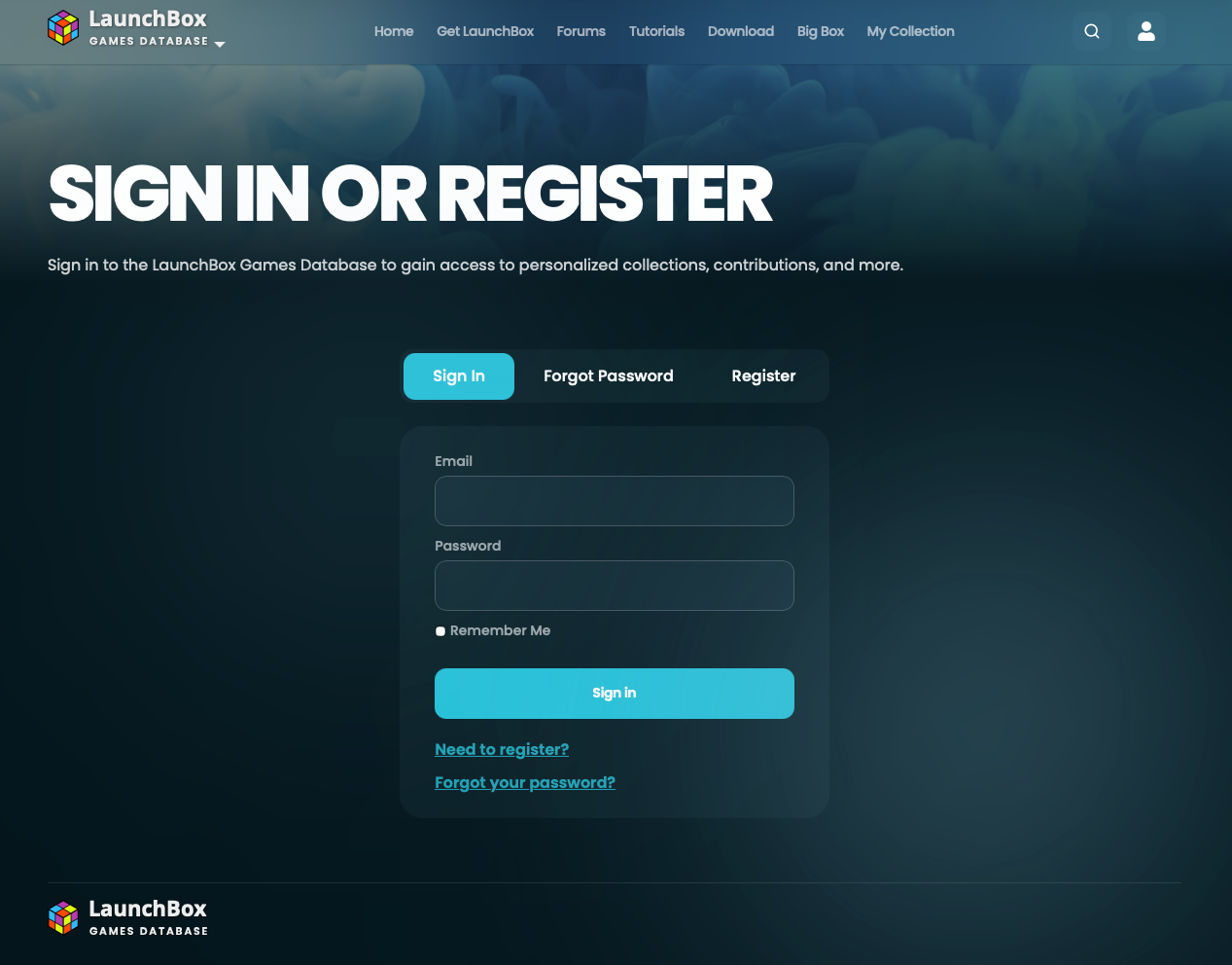
Do I need an account?
No account is required to browse the website, view game pages, or look at game media. If you only want to search for a game, check metadata, or view images, you can do that without signing in.
You do need a Games Database account if you want to submit changes, upload or replace images, request deletions, manage personal collections, or moderate submissions after earning moderator access.
A Games Database account is used for contribution and personalization. It tracks your submitted changes, approved changes, rejected changes, moderation status, and collections.
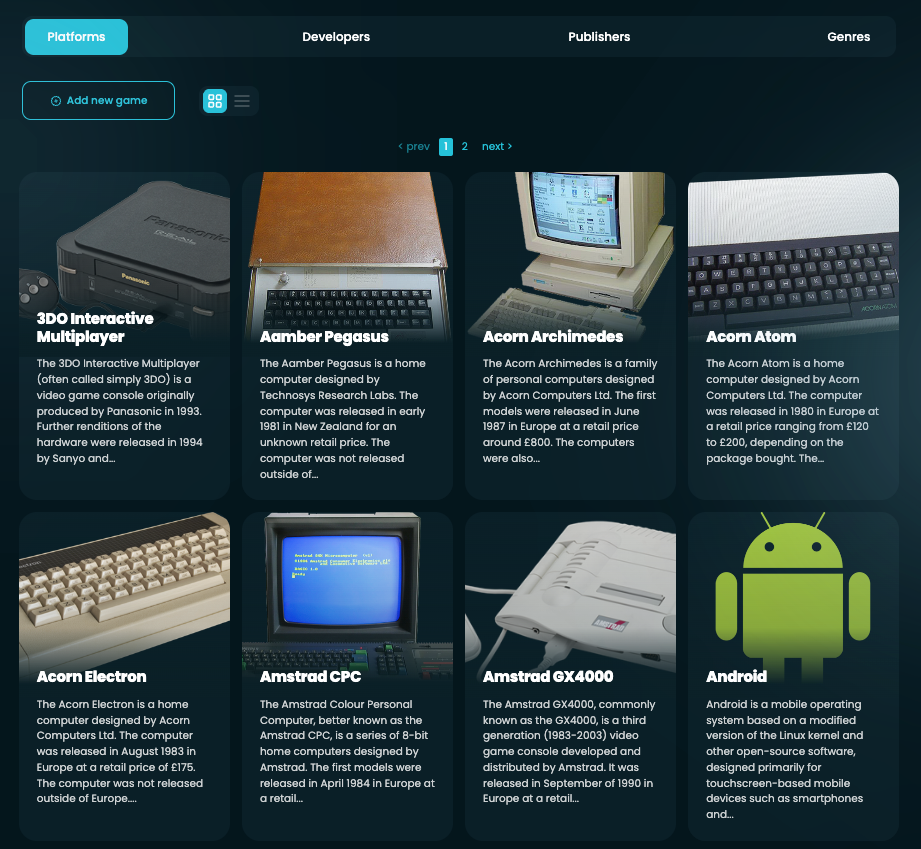
Browsing platforms
The Platforms area is a good starting point when you want to browse by system rather than search for a specific title. Open the platform list, choose a platform, and then browse the games that belong to it.
This is useful when you want to check whether a platform is already represented, browse a system's library, or narrow your search before opening a specific game page.
Community users can add and edit game entries, but platforms themselves cannot currently be created by the community. If you want to request a new platform, submit it on the LaunchBox feedback site: request a new platform.
Searching for games
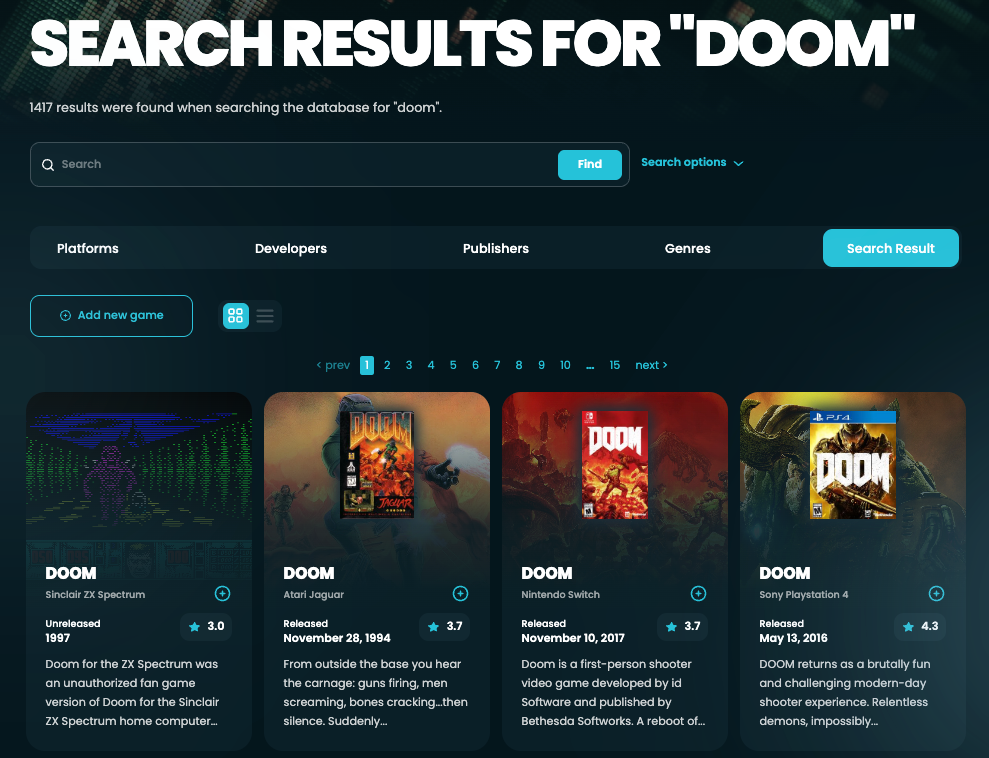
The fastest way to find a game is to use the search box in the site header. Start typing the game title and the site will show matching results. Results include the game title, platform, and a thumbnail when available, which helps you choose the correct record when several games have similar names.
For example, searching for doom may show multiple games across multiple platforms. Use the platform shown under each result to make sure you open the correct entry.
If there are more results than the quick search can show, use the option to show more results and open the full results page.
Using search filters
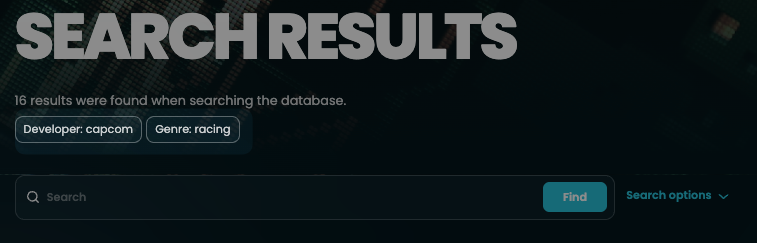
The search box also supports filter-style searches. These are useful when a normal title search returns too many results or when you want to search by a specific kind of data.
Useful examples include:
title:mario platform:nintendo entertainment system to look for Mario games on a specific platform.
developer:capcom to find games associated with a developer.
publisher:nintendo to search by publisher.
genre:racing to search by genre.
overview:dragons to search for words in game overview text.
The website supports filters such as platform, developer, publisher, genre, game type, ESRB rating, cooperative status, max players, title, and overview.
Understanding a game details page
A game details page is the main record for a game. It shows the game's title, platform, release information, game type, player count, cooperative status, ESRB rating, developers, publishers, genres, alternate names, overview text, links, ratings, collections, and media.
This is also where signed-in users can start most contribution workflows. From the game page, you can edit metadata, request deletion, rate the game, add it to a collection, and view or manage images depending on your account permissions.

Viewing game media
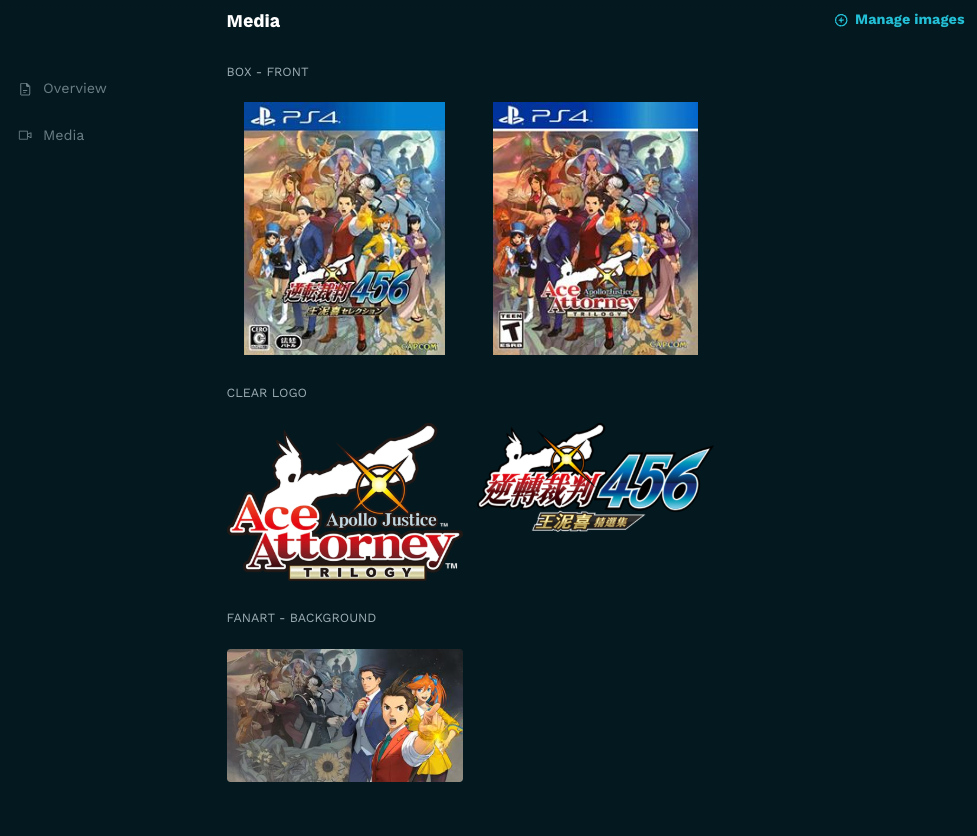
Images are grouped by type, such as box art, screenshots, clear logos, fanart, posters, icons, carts, and discs. Open an image to view it larger and see useful details like the image type, region, and dimensions.
Checking existing media before uploading helps avoid duplicates and makes it easier to decide whether you should add a new image or replace an existing one with a better version.
Using collections
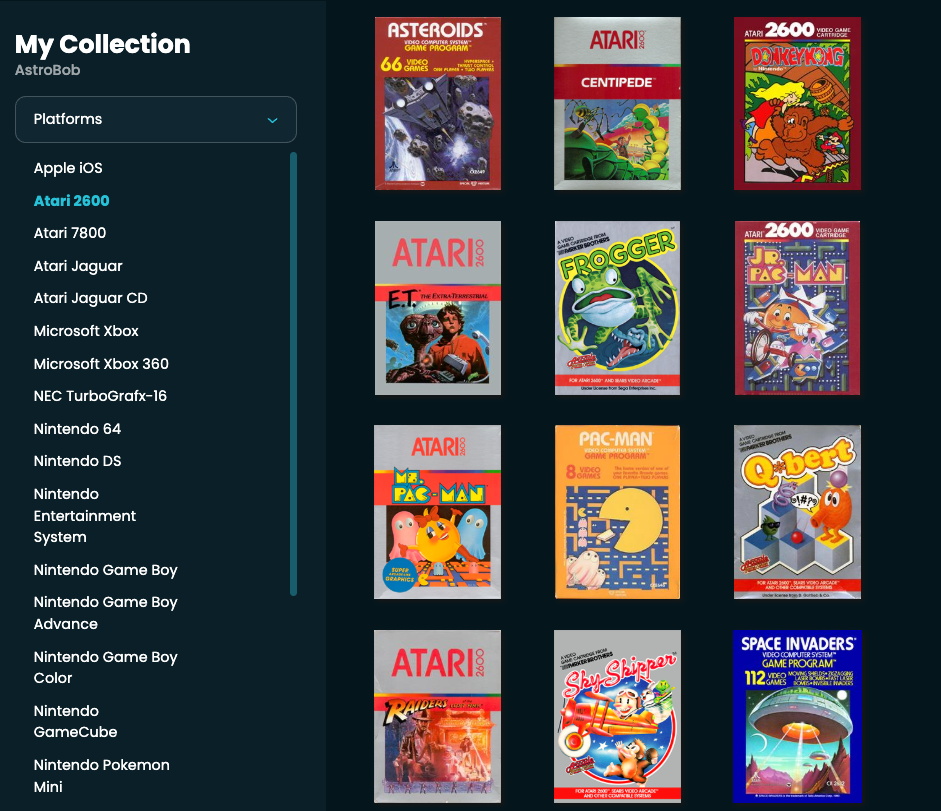
Collections are lists connected to your Games Database account. They let you group games you care about, keep track of games you want to revisit, or create themed lists that can be shared with other people.
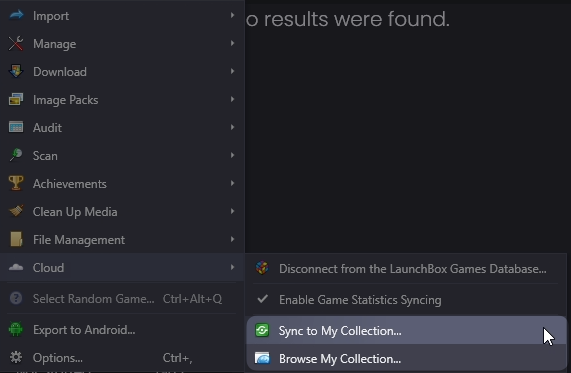
If you use LaunchBox, you can sync your LaunchBox collection to the Games Database so your collection can be viewed online. This sync is currently one-way: LaunchBox sends your collection to the Games Database, but changes you make on the website do not sync back down into LaunchBox.
You can also create your own collections directly on the website. From a game page, signed-in users can add the game to an existing collection, create a new collection, or open collection management. Collection management lets you view your default collection, create additional named collections, rename them, clear the default collection, or delete a collection you no longer need.
Collection pages use public URLs, which makes them easy to share with friends or post elsewhere. If you share a collection link, anyone with the URL can view that collection page. If you do not want a collection shared, avoid sending out its public URL.
Adding a game to a collection does not change the public game record. It only affects your own account and collection pages.
Where to go next
Once you are comfortable finding games and reading game pages, the next step depends on what you want to do:
Use Submitting Game Updates to correct metadata on an existing game.
Use Adding and Deleting Games to add a missing game or request removal of a duplicate or invalid entry.
Use Uploading and Managing Images to add, replace, or remove game media.
Use Moderation Guidelines Reference to understand the quality standards reviewers use when approving or rejecting submissions.
Was this helpful?
Still need help? Ask the team